Trellus HubSpot Auto Dialer: From Contact List to Logged Follow-Up
See how Trellus power and parallel dialing work in HubSpot: choose a list, make calls, save outcomes and create callbacks linked to the right records.


On this page
Our Top Picks


A useful HubSpot auto dialer should do more than place the next call. A rep needs to see who answered, record the outcome against the right contact or company, and leave a clear next step for the team.
Trellus for HubSpot supports that workflow in documented task, prospecting, contact, company and record views. This guide follows a call block from selecting the audience to checking the saved activity.
Watch the 10-minute, 46-second HubSpot tutorial for a recorded demonstration of the Chrome extension, dialing controls, post-call notes and follow-up tasks.
Workflow and official source information checked October 20, 2026. Availability depends on your Trellus plan, HubSpot subscription, permissions and the supported view you use.
Power dialing and parallel dialing in HubSpot
Power dialing calls one number at a time. Use it when you want to review each account, leave room for a detailed follow-up, or work through a carefully selected list at a controlled pace.
Parallel dialing calls multiple numbers at once and connects the rep to a live conversation. Trellus supports up to five simultaneous lines on eligible plans. The rep handles one conversation at a time. Parallel dialing does not mean talking to five people at once.
Neither mode fixes poor contact data. Check phone fields and the audience in HubSpot before starting. The dialing-mode video explains the difference visually.
Before the first call
- Use the Trellus Chrome extension and sign in to the accounts your team intends to use.
- Confirm access to the HubSpot records, tasks and call outcomes involved in the workflow.
- Open a supported HubSpot view. An arbitrary embedded table or custom screen is not automatically equivalent to the documented Contacts or task view.
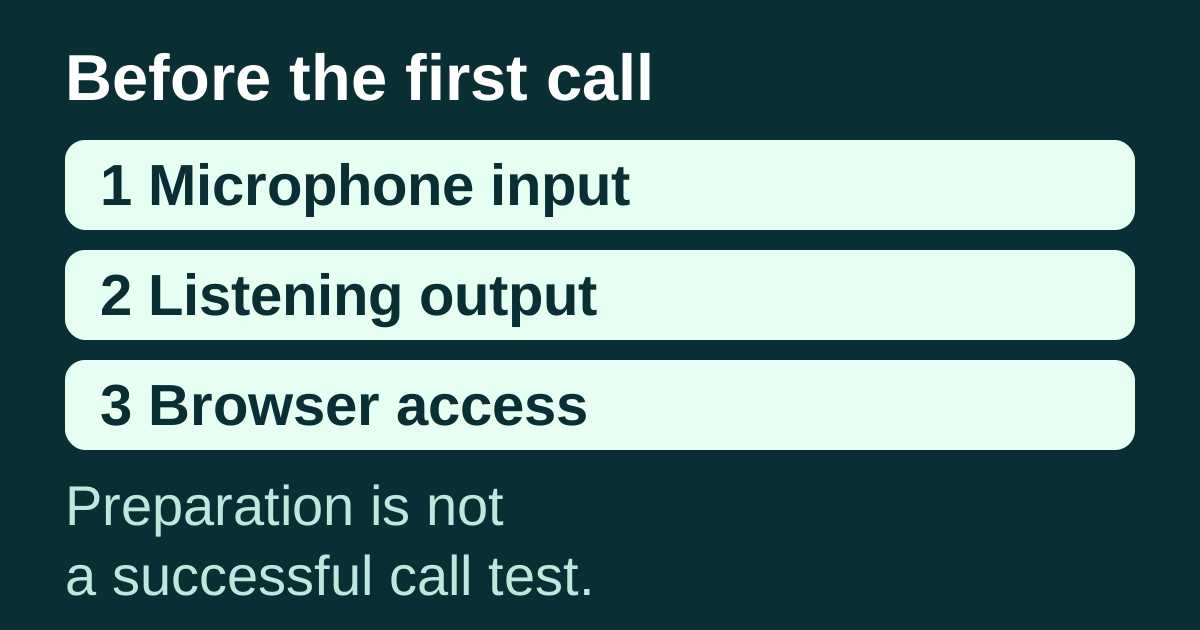
- Check the selected outbound number, microphone and audio before beginning the call block.
- Have your team's approved calling list and recording settings ready.
For the current supported surfaces and saved fields, use the HubSpot integration guide. For plan eligibility, use current pricing.
1. Choose the audience in HubSpot
Start from the HubSpot view your team already uses to organize work. That may be a filtered Contacts view, supported tasks or prospecting tasks, or a company list. Check that the records shown are the records you want to call.
The view determines the audience. Use your team's HubSpot ownership and filtering rules to decide who calls which contacts, then use Trellus to work through that list.
2. Choose the number and dialing mode
Open Trellus and review the available contact or company phone details. Select power or parallel dialing according to the call block and the features available in your account.
When a contact has both a mobile number and a company number, check which one you intend to call. That choice also matters when you inspect the saved association later.
3. Have the conversation with the record in view
The recorded tutorial explains the contact context available during power and parallel dialing. Use that context to keep the conversation specific. Where enabled, Trellus live coaching can provide guidance during the call.
Keep the distinction between assistance and a finished CRM record: an AI-generated summary still needs review for the actual outcome and next step.
4. Save the outcome with the right record
Supported Trellus call logging can include direction, status, timing, duration, disposition, notes or summary, a recording URL when available, and the relevant contact or company associations.
After an initial test call, inspect the activity on the HubSpot record. Confirm that the outcome matches the conversation and that another rep can understand what happened. If you called a company number, check the company association as well as the contact.
5. Complete the task or schedule the callback
Supported task workflows can complete the originating call task. When the next step is another call, choose a follow-up date to create a callback task linked to the relevant record with available notes and summary.
For an agreed callback, verify the date and task association in HubSpot before moving on. A completed dial is not the same as a completed follow-up plan.
Does HubSpot already have a power dialer?
Yes. HubSpot documents a native power dialer for Sales Hub Enterprise, with a Contacts queue, pause and resume controls, and call logging. Its prerequisites include a HubSpot-provided number and browser calling setup.
If that covers your team's needs, evaluate it. Compare Trellus when you want its embedded power and parallel workflow and associated coaching features. The relevant question is what your reps need to do, not whether HubSpot has any calling capability.
A five-minute acceptance check for your team
- Start from a supported view containing an agreed test contact.
- Place an authorized test call using the chosen mode and number.
- Save a recognizable test outcome and note.
- Open the HubSpot contact or company and check the activity and associations.
- Confirm the originating task state and create, inspect and clean up a test callback.
This checks the workflow; it does not establish a promised connection-rate increase or hours saved. For a larger rollout, compare completed conversations and accurate follow-ups over comparable call blocks.
Frequently asked questions
Will every HubSpot screen work the same way?
No. Use the documented task, prospecting, contact, company and record surfaces. Your HubSpot subscription and permissions affect the views and fields available.
Does the dialer automatically make a calling campaign compliant?
No. A dialing mode is not an approval of a contact list, recording policy or calling campaign. Your team must apply its approved rules and settings.
Where can I see the complete workflow?
Use the recorded HubSpot walkthrough, review the integration details, or request a demo with your team's usual list.