Diagnose a Pending Manual Call Task in GoHighLevel
Match the call, queue item and workflow execution before deciding what needs attention.
On this page
A call can appear on a GoHighLevel contact while that contact's Manual Call workflow step is still waiting. Before calling again or clearing a queue, find out which piece of work is unfinished.
HighLevel's Manual Call documentation says that its workflow advances when the completed task is explicitly deleted from Conversations → Manual Actions. Calling the contact from another screen does not, on its own, finish that step. That explains a pending item; it isn't a reason to delete work nobody has done.
There is a second detail to settle before pressing a button. HighLevel's HiRise Manual Actions guide describes Complete, Skip and Re-queue, while the action guide above describes deletion. The documents don't establish that those controls have interchangeable effects. Don't translate one label into another by assumption.
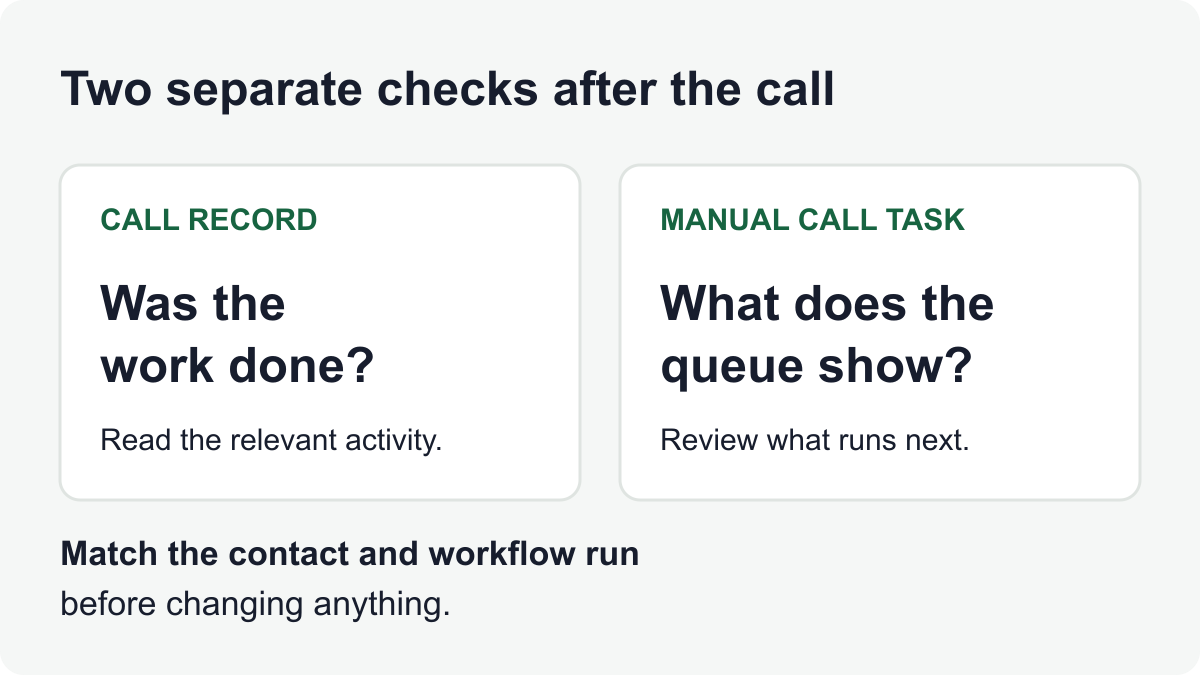
This is a read-only diagnostic for one existing native Manual Call item. You'll identify the task, check responsibility and completed work, then inspect the relevant workflow execution. It ends with a specific finding or a handoff—not an instruction to clear the queue. The worked cases are fictional, and the instructions follow HighLevel's documentation checked October 23, 2026, rather than a live customer-account test. The opening diagram explains the separate checks; it isn't a product screenshot.
Start with one item, not the whole queue
Use your normal authorized access to the relevant HighLevel location, contact and workflow. If you can't see the required records, ask the existing workflow owner to make the check. Don't assume a missing row means it was deleted, or request broader account access just to make this exercise easier.
Write down the contact's internal record link, the task's name, its assigned user and the workflow you expect created it. Include when the task appeared if that helps distinguish it from another attempt. Keep contact details inside your approved systems; you don't need a prospect's phone number in a shared troubleshooting document.
Choose one example you can trace. Don't bulk-clear old tasks to see whether a workflow starts moving. A long queue can contain unfinished calls, genuine duplicates and tasks from different workflows. Those require different decisions.
1. Confirm that this really is a Manual Call step
Open Conversations → Manual Actions in the intended location. In the documented HiRise view, inspect the source, task type, status, assigned user and date filters. Its queue statuses include Yet to Call, Completed and Skipped. A bookmarked queue can retain filters in its URL, so record the current view before changing a display filter.
Locate the item by contact and intended work, not just a familiar name. Keep the investigation separate from working the queue: Let's Start begins that activity, and HighLevel documents Enter/Return as a next-task shortcut. Neither is needed for this diagnosis. Don't use task completion, skipping, re-queuing or deletion as a search technique.
Open the existing workflow under Automations → Workflows and check the action that created the item. Match its name and this contact's enrollment. A creation entry establishes that the item was added, not that someone did the work.
Keep three objects separate:
- A call record: information about an attempt or conversation.
- A Manual Call item: the work placed in the native Manual Actions queue.
- An ordinary task: an assigned piece of work with its own due date, such as a later follow-up.
HighLevel documents the ordinary Add Task action separately. An open follow-up task isn't automatically a stuck Manual Call. Likewise, finding a note on a contact doesn't establish what happened to the queue item.
If the task's origin is unclear, stop here and identify it with the workflow owner. Rebuilding the workflow, enrolling the contact again or changing call-result labels is a much larger change than diagnosing one item.
2. Check who was supposed to do the work
Look at the Manual Call action's Assign To setting in Advanced Settings, then compare it with the actual task assignment. HighLevel's documented fallback matters when the intended rep can't find the item.
| Configured situation | Documented assignment | What to inspect |
|---|---|---|
| A user is selected and has contact access. | That selected user. | Is this the rep looking for the task? |
| The selected user lacks contact access. | The contact owner is the fallback. | Check the owner's view before creating replacement work. |
| No user is selected. | The contact owner. | Compare the intended responsibility with the actual owner. |
| Neither an available selected user nor contact owner can take it. | Unassigned. | Have the workflow owner resolve responsibility through the team's normal process. |
A reassignment is a handoff, not proof that the call was completed. Make sure the person accepting the work knows what remains. Don't change account-wide permissions or other contacts' ownership to fix one missing task.
3. Decide whether the assigned work is complete
Read the task instructions and the relevant contact activity together. What did this particular step require? An attempted introduction, a completed conversation and a promised callback are different jobs. Your team's process must define what counts as finishing the assigned work.
Check the existing note or call record with the responsible rep where appropriate. Look for the right contact, the actual action and any commitment that still needs an owner. “There's a call on the record” isn't enough if that call addressed another matter.
- The required work was done: keep its result available and move on to reviewing what follows this step.
- Work remains: leave the item in place and resolve who should do it. Follow the contact's current instructions and your team's calling rules.
- You can't tell: record the missing fact and who will check it. Don't manufacture another call or label the work complete to tidy the queue.
If the person has asked not to be contacted, don't make an extra call to satisfy a workflow. Have the owner handle that exception and its downstream actions through the established contact-preference process. The task's appearance doesn't override the person's instruction.
4. Establish what a change would release
Open the workflow and inspect what comes immediately after this Manual Call step. Could advancing it send a message, create more work or take the contact down a branch? Make that consequence explicit before changing anything.
Record the actual controls on your screen without using them. Don't assume Complete means the action guide's deletion, that Skip releases the next action, or that Re-queue restores a previous workflow state. The cited documentation doesn't settle those mappings for this particular task.
If the work is complete but the applicable transition is unclear, the finding is specific: “This item is matched and the work is done; the owner still needs to confirm how the displayed control changes this workflow execution.” Preserve the visible label, current status and intended next action. That is a useful handoff, not a reason to try every control.
Any later task change needs the responsible owner's confirmed procedure for that account and an appropriate next action. It sits outside this read-only check. Don't change permissions, edit the workflow, remove the contact or create another enrollment to get around the uncertainty.
5. Verify the same contact's workflow execution
HighLevel's Execution Logs and Enrollment History guide describes opening an existing workflow's Execution Logs → View Details. Match the contact, named action and times, including the displayed time zone. Use the execution history for the particular enrollment, rather than treating the contact's combined history as one run.
Write the status actually shown; don't assume every screen uses a literal “Waiting” label. For a change already made through the team's supported procedure, compare which item was pending, what changed and which next action actually ran. Another waiting step may be the intended result. Don't report the entire workflow finished just because a queue item disappeared.
For an expected new task, inspect its contact association, owner and due date separately. For an action that should not run, stop and involve the workflow owner before making another change. Use documented processing expectations rather than inventing a universal wait time.
If a confirmation and the destination disagree, keep both observations. The action-to-record checking guide provides a broader method for that situation; this article's narrower finish is one Manual Call item and its next workflow action.
Two fictional cases: the same contact name isn't enough
Case A: the introduction happened from another screen
Imagine Avery has a Manual Call item named “Introduce the onboarding process.” Avery speaks with the fictional contact Morgan from the Contacts page and leaves a note covering that introduction. The Manual Actions item remains.
Avery checks the location, contact and originating enrollment. The required introduction is complete. The next configured action is an ordinary Add Task named “Prepare the requested outline,” assigned to the person responsible for that work. Avery records the displayed queue status and controls, then gives the owner the matched item and next-action check. Avery doesn't click Complete or Delete to test whether they're equivalent.
The initial finding is “work done; queue transition needs confirmation,” not “integration broken.” If the owner later makes a supported change, the follow-up check is whether this exact enrollment reached the intended next action and whether the new task has the right owner and context. A smaller queue alone wouldn't answer that.
Case B: a different call doesn't finish the pending request
Now imagine a separate workflow has a Manual Call item to arrange Morgan's renewal discussion. Someone notices the earlier onboarding call and assumes the pending request is a duplicate. It isn't: the note describes an introduction, not an arranged renewal conversation.
The owner leaves that item alone, checks the existing responsibility and records what still needs to happen. If a later conversation has already resolved it, the owner can inspect that evidence. If Morgan has changed the contact instruction, that instruction governs the next action. Neither matching names nor an older call should trigger automatic cleanup.
These cases illustrate how to reason about the task. They aren't customer incidents, observed HighLevel test runs or evidence of a Trellus integration outcome.
If it still looks stuck, use the smallest next check
| What you found | Next check | Avoid |
|---|---|---|
| The rep can't find the item. | Confirm location, source/type/status/user/date filters, assignment and contact visibility with the owner. | Creating a second task before locating the first. |
| A call exists, but the task is still pending. | Match the call to the task's actual instructions and originating workflow. | Assuming any call to that contact finished this work. |
| The item disappeared, but the expected next result is missing. | Inspect the same contact's execution details and the destination for the next action. | Deleting another item or repeatedly re-enrolling the contact. |
| A different item remains for the same person. | Compare its workflow, action name and required work. | Treating all tasks for one contact as duplicates. |
| The records don't establish whether the work happened. | Assign a specific fact check, owner and review time. | Inventing a result or making an unwanted call to fill the gap. |
| The UI offers Complete/Skip/Re-queue but the documented action says delete. | Record the labels and task/enrollment. Have the owner establish the supported transition before changing it. | Assuming a label guarantees progression or that Skip is harmless. |
For an unresolved case, preserve the internal contact/task references, location, workflow and action name, time with time zone, what you did and what appeared afterward. That is more useful to the existing administrator than a screenshot of a large queue with “still broken” written beside it. Share only the information that person is authorized to see.
Copy this one-item repair worksheet
Use one copy per item. These are investigation prompts, not new HighLevel fields or an automation import. Keep the original observation when you add a later finding.
| Check | Your record |
|---|---|
| Location, authorized checker and check time/time zone | ____________________ |
| Queue source/type/status/user/date filters; actual visible status | ____________________ |
| Contact and exact task references | ____________________ |
| Originating workflow, execution and Manual Call action name | ____________________ |
| Task instructions and actual assigned person | ____________________ |
| What was done; where the relevant call/note can be found | ____________________ |
| Decision: complete / unfinished / unclear, with reason | ____________________ |
| Next configured action and whether it is appropriate now | ____________________ |
| Displayed controls and any unresolved lifecycle mapping | ____________________ |
| Earlier supported action, if any; otherwise no task change | ____________________ |
| Same-run result and any separate destination check | ____________________ |
| Remaining question, owner and next check time | ____________________ |
Finish with one of three findings: the work is unfinished and has an owner; the relevant next action is confirmed for this enrollment; or a named question remains with an owner and next check time. A filtered-out item or an unclear control is not proof of completion. Keeping the task unchanged can be the correct result.
If your team calls with Trellus
Trellus's GoHighLevel calling workflow starts from supported Contacts Smart Lists and saves its supported note, selected-tag and callback results. Don't treat one of those records as proof that a native Manual Call item has been cleared. Use the Trellus HighLevel setup guide for that separate workflow, and this diagnostic for the native queue item.
You don't need to change dialers to identify a pending task's owner or understand its next action. If your broader goal is a different calling workflow, bring the completed worksheet and the worklist you want to use to the integration discussion. Browse the other How-to Guides for the next task, rather than changing several parts of the process at once.