Prepare a Google Sheets Sample for Trellus with Fictional Rows
Prepare two distinct fictional tabs and a column worksheet before connecting a calling workflow.
On this page
How-to Guides · Google Sheets preparation
Before trying a spreadsheet calling workflow, build a small file that you can inspect completely. Give it two clearly named tabs, four deliberately different cases and a written column plan. You will have something concrete to discuss during setup without bringing customer records into the preparation exercise.
This guide covers that preparation in Google Sheets on a computer. It ends with a fictional sample and a handoff worksheet. Connecting Trellus, granting account access, checking a calling queue and placing calls are separate steps. The phone cells below contain text placeholders; do not start a calling session with this file.
The Trellus Google Sheets integration page describes the supported workflow and recommends checking your layout on a sample. Here, you will construct the sample from an empty file rather than copy a working customer spreadsheet.
Before you start
You need permission to create a spreadsheet in the intended Google Workspace, a known file owner and a description of the columns your team wants to use. Use only the column structure and invented content. You do not need a prospect export, customer notes or a real telephone number for this exercise.
Choose someone to own the later product check. That person will need to confirm the current Trellus setup and the team’s account-access requirements. If a future check includes a call, it also needs a deliberately agreed, team-controlled destination and the appropriate calling and recording process. Leave that work outside this preparation session.
Keep a separate note for the worksheet near the end of this guide. Recording observations outside the sample makes it easier to distinguish your instructions from the rows you may later examine in a product rehearsal.
1. Create a separate blank file
Open Google Sheets and use the plus control to create a spreadsheet. Google also provides sheets.google.com/create as a direct starting point. These are the routes in Google’s spreadsheet creation instructions.
Name the file Trellus fictional sample — preparation only. Click the file title at the top, enter the name and press Enter, following Google’s file naming instructions.
Start empty even if the working spreadsheet already has a convenient layout. Recreate the needed headers manually. This avoids carrying unrelated tabs, comments and customer content into the exercise.
A separate sample limits what you put in this file. It does not narrow an application’s requested account permissions. Google documents that Sheets API access scopes apply to a spreadsheet file rather than an individual sheet tab. The exact permissions requested by the current Trellus setup still need their own review before authorization.
2. Build the first tab
Double-click the first sheet tab’s name and rename it Practice A. Google documents this in its sheet editing guide.
Enter these headers across row 1:
| Column | Header |
|---|---|
| A | Sample ID |
| B | Name |
| C | Company |
| D | Work phone |
| E | Mobile phone |
| F | Call context |
| G | Preparation note |
| H | Baseline marker |
Use one header per cell and one fictional person per row. Keep this first exercise simple: ordinary cell values, no merged headers, formulas or links to another workbook. These are choices for an inspectable sample, not claims about Trellus’s supported spreadsheet features.
To enter a value, select an empty cell, type and press Enter. Double-click an existing cell to edit it. Google’s cell editing instructions cover these actions.
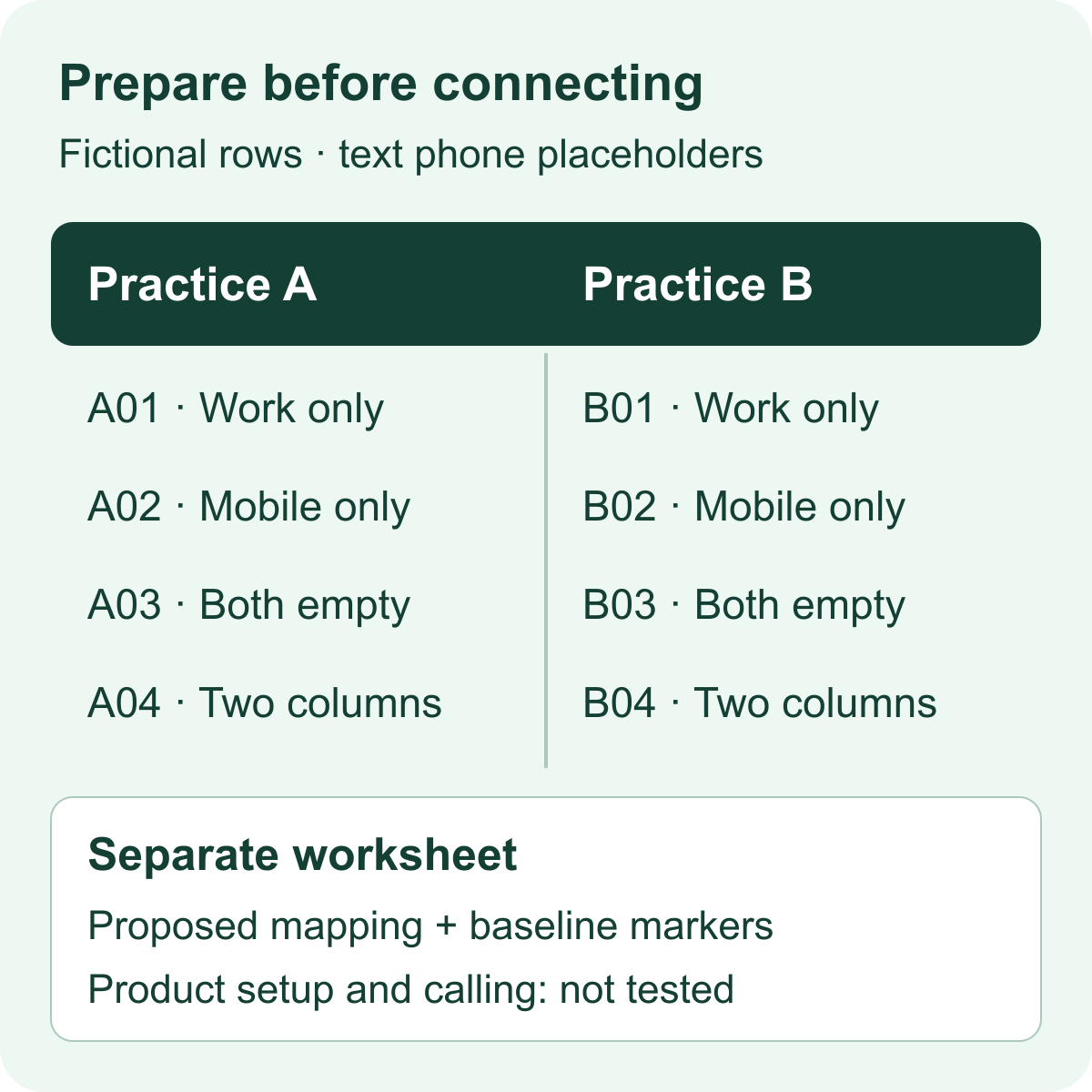
Now fill rows 2 through 5. In the table below, empty means leave the cell genuinely blank; do not type the word, a dash or a space. All names, companies and situations are fictional. Values in square brackets are literal text placeholders, not telephone numbers.
| Sample ID | Name | Company | Work phone | Mobile phone |
|---|---|---|---|---|
| A01 | Mina | Northwind Demo | [WORK A] | empty |
| A02 | Tomas | Fieldcraft Demo | empty | [MOBILE B] |
| A03 | Kai | Valley Demo | empty | empty |
| A04 | Leena | Harbor Demo | [WORK D] | [MOBILE D] |
Complete the remaining columns on those same rows:
| Sample ID | Call context | Preparation note | Baseline marker |
|---|---|---|---|
| A01 | Practice introduction | Work-only case | KEEP-A01 |
| A02 | Practice follow-up question | Mobile-only case | KEEP-A02 |
| A03 | Practice missing-data review | Both phone cells intentionally blank | KEEP-A03 |
| A04 | Practice choosing a number | Two separate phone columns | KEEP-A04 |
Check that each sample ID still matches its name, context and marker. The two tables describe the same four rows; they should not become two separate lists in the spreadsheet.
3. Know what each case is there to reveal
A01 is the work-only case. It gives the later reviewer a straightforward place to inspect the proposed Work mapping. If the reviewer chooses Mobile instead, the blank cell should be obvious in the worksheet. Do not assume a product automatically switches to another populated column.
A02 is the mobile-only case. It reverses that arrangement. Together, A01 and A02 expose a column-choice mistake more clearly than four rows with every field filled. They do not establish whether either row would enter a Trellus queue.
A03 is the deliberately incomplete case. Leave both phone cells empty. This preserves a question for the later product check: how does the supported workflow present and handle a row without usable phone data? Adding a made-up number merely to make the sample look complete would remove the condition you intended to examine.
A04 is the number-choice case. Two separate text placeholders make Work and Mobile easy to tell apart. Before a later authorized rehearsal, write down which column you intend to inspect and what should be confirmed when both fields have usable values. Accepted phone formats, priority and fallback behavior remain unverified.
The Preparation note column explains the exercise to a person. Writing “skip,” “do not call” or similar text there would not establish a Trellus exclusion. Likewise, a text placeholder is not a tested application-level safety control. Keep the exercise out of a calling session.
The Baseline marker column holds a recognizable value for each row. Record those values in your separate worksheet before any later product work. They make comparison easier; they do not prove that an integration preserves unrelated columns.
4. Add a visibly different second tab
On the Practice A tab, open the downward-arrow menu and choose Duplicate. Rename the resulting tab Practice B. Google documents both operations in its sheet editing guide.
Keep the same headers and four-case arrangement, then replace the copied values:
- B01: Noor at Alder Demo; Work contains [WORK E], Mobile stays empty; context is “Second-tab introduction”; marker is KEEP-B01.
- B02: Eli at Beacon Demo; Work stays empty, Mobile contains [MOBILE F]; context is “Second-tab follow-up”; marker is KEEP-B02.
- B03: Ren at Cedar Demo; both phone cells stay empty; context is “Second-tab missing-data review”; marker is KEEP-B03.
- B04: Imani at Delta Demo; Work contains [WORK H] and Mobile contains [MOBILE H]; context is “Second-tab number choice”; marker is KEEP-B04.
Keep the corresponding preparation notes describing the same four conditions. Confirm that Practice B contains B01 through B04 and no A-series IDs or markers.
This difference helps a reviewer identify which tab they are looking at without relying solely on the tab’s name. Two identical copies would make a wrong-tab observation much harder to spot. You have prepared that distinction; you have not tested Trellus’s tab switching or resume behavior.
5. Write the proposed mapping before opening product settings
In your separate note, record the intended file, Practice A, header row 1 and sample range A1:H5. Then fill in this plan:
| Sample column | Intended meaning | Question for the later product check |
|---|---|---|
| A — Sample ID | Human reference for this exercise | How will the reviewer match an observed record to the original sample row? |
| B — Name | Fictional person’s name | Does the supported mapping show this intended value? |
| C — Company | Fictional company | Is the company context attached to the same row? |
| D — Work phone | Proposed Work source | What format and selection rules does the current setup require? |
| E — Mobile phone | Proposed Mobile source | How is this column selected, and what happens when it is blank? |
| F — Call context | Short invented context | Where can the reviewer inspect it in the supported workflow? |
| G — Preparation note | Human explanation only | Keep it distinct from actual product exclusion controls. |
| H — Baseline marker | Before-state comparison | After an authorized test, did the marker remain with the same sample ID? |
These are your spreadsheet headers and planning questions. They are not Trellus control names or instructions to map every column. Label this mapping proposed, not tested. Record confirmed Trellus settings separately only after the owner observes the current supported setup.
If your team’s intended layout uses different column positions, update the worksheet to match. The important check is that the written plan agrees with the file in front of the reviewer. Do not add private context simply because the working spreadsheet has a field for it.
6. Add an optional Google filter case
Skip this step if filters are irrelevant to the intended workflow. Otherwise, on Practice A, select A1:H5 and choose Data → Create a filter. Open the filter control in the Sample ID header. Under Filter by values, deselect A03 and click OK. Google’s filter instructions describe those controls.
Record:
- Filter type used: ordinary Google Sheets filter
- Complete sample IDs: A01, A02, A03, A04
- Expected visible IDs after this change: A01, A02, A04
- Actual visible IDs: write what you observe
This creates a known difference between the full dataset and its visible rows. It establishes only the Google Sheets display you inspected. Trellus’s handling of an ordinary filter, a filter view or hidden rows must be checked separately.
If your real process uses a filter view, record that requirement rather than treating this ordinary-filter exercise as equivalent. Google’s documentation distinguishes the two. You can remove the ordinary filter with Data → Remove filter when you need to inspect all four rows again.
7. Review the whole sample before handing it over
Inspect both tabs, including the intentionally empty cells and all markers. Check for unexpected content outside A1:H5. The file should contain only material created for this exercise.
If you are unsure whether another tab is hidden, inspect the View menu’s option for showing hidden sheets and reveal any you need to review. Google explains that editors can reveal hidden sheets and that protecting cells should not be treated as a security measure. See its guidance on hidden and protected sheets. Hiding a tab is not a way to keep its contents outside the spreadsheet file.
If you discover customer data, unrelated operational tabs or an unexplained formula pulling from another source, stop. Rebuild the exercise from a blank file containing only the fictional values. If real data was already shared somewhere unintended, follow your team’s normal process for that situation.
Preparation is complete when another person can identify the file and tab, explain all four cases, match every column to the written plan and find the before-state values. Account authorization, accepted phone formats, queue membership, result fields and calls should still be labeled not tested.
Resolve preparation problems at the source
The headers or row values are shifted. Compare the sheet against the column letters above. Check D and E carefully and verify that an intended blank did not move a later value into the wrong column. Enter the four rows cell by cell if necessary. Review the sample IDs and markers again before continuing.
The two tabs still look alike. Complete the B-series replacements before handing off the file. A different tab label is useful, but different IDs, names and markers make the distinction easier to inspect.
One sample row seems to have disappeared. Check the recorded filter state and inspect all rows with the ordinary filter removed. Do not recreate A03 until you have established whether it is still present but hidden by the filter.
A teammate cannot edit the file. Check that you are using the intended account and that the owner has approved the needed access. Resolve the permission issue with the owner or administrator. Making the file public is unnecessary for this exercise.
The reviewer wants real numbers to finish the worksheet. Keep this preparation file as it is. A later calling test needs a separately agreed process, an appropriate team-controlled destination and confirmed product requirements. A real prospect should not become a convenient substitute.
The product asks for access you do not understand. Stop before approving it. Give the authorized owner the actual request and intended use through your team’s approved route. A fictional sample does not resolve uncertainty about broader account access.
Copy this preparation checklist
- File name and link: ____
- File owner and later product-check owner: ____
- Tabs reviewed: ____
- Intended first tab and sample range: ____
- Practice A IDs and corresponding baseline markers checked: ____
- Practice B IDs and corresponding baseline markers checked: ____
- Work and Mobile columns recorded separately: ____
- Both-phone-cells-empty case retained: ____
- Filter type, complete IDs and visible IDs recorded, if used: ____
- Unexpected tabs, customer content, links and formulas checked: ____
- Proposed mapping recorded; actual product mapping still unverified: ____
- Unresolved issue and person responsible for it: ____
Keep a short copy of the baseline values beside this checklist. For example: “Practice A: A01 / KEEP-A01; A02 / KEEP-A02; A03 / KEEP-A03; A04 / KEEP-A04.” Include the equivalent B-series values too.
The useful result is a small, understandable sample that the owner can inspect during the next authorized setup step. Bring it and the worksheet to the current Trellus Google Sheets workflow. Confirm the real controls and behavior there before moving toward a calling rehearsal or production data.
For a manual record of call attempts after calling begins, use the separate sales call log template. It is not this preparation sample or a Trellus mapping file.