
 1:55
Power Dialing vs. Parallel Dialing
Compare the workflows: power dialing calls one line at a time, while parallel dialing calls multiple lines and connects the rep when someone answers.
Watch guidePower or parallel dial from Attio tasks with Trellus, including filtered contacts, voicemail drops, caller ID strategies, and post-call notes and dispositions.
Recorded walkthroughs may show earlier screens or settings.
Choose a chapter to move the player to that moment. Press play if needed.
Hey, it's Michael with Trellus. And today we're going to be going over our power and parallel dialer integration into Addio. So to start off we are over
Here in my task screen. Want to go over to your left hand side and navigate over there. From there we're going to click on this blue button that will populate in the top right hand corner which will launch Trellus. So let's do that. What it's doing is it is taking all
Of your data in your tasks list and just simply putting it into the dialer so you can see Ian Frazier. We can click on him, it'll pull up his contact and then you can access the task from there. Any sort of pre activities, or anything you want to research prior to the call.
Another part I'll draw your attention to here is the dialable versus filtered buttons here. So your dialable everything that you can call. This is just your standard sequencing. If you have something that is filtered out, let's say for example two of these phone numbers are outside of your time zones that you have set up. It will flag it and then remove it from your list. You can always adjust the criteria with this adjust settings button for this one in particular, this is just a time zone preference. So you can go up and toggle that in the button just above this here for time zone and location. Some other examples of why a call might be filtered out or maybe there's no phone number for it or, or it could be assigned to another rep.
All right, so before we call we want to make sure that we are toggling our number of dials at the same time up here. So the one x indicates that we are power dialing or only calling one contact at the time. We can also go up to five contacts for parallel dialing. And for folks who might not have a ton of experience with parallel dialing, we usually Recommend Starting at 3x and then scaling up or down depending on your connect rates.
To the right hand side of that we have our auto voicemail drop. You see I have two prerecorded messages here. You can also record your own to have for your use with this microphone right here. Now in order to automatically leave a voicemail if you do not get connected to a call, we'll want to make sure one of these is activated. And you'll know it's activated because it is highlighted over the button here. If it is not, you will have to manually leave it after each call.
The next filter over here is the best number which is an aggregate of data that helps the system choose which number will have the highest theoretical connect rate for whichever contact that you are calling. This is the default. We find it works quite well, but you can also choose your own numbers manually. Auto rotate or dial based on geographic location too. To initiate the calls, we'll go back to our dialable section here and then we'll highlight or click this green button right here. You'll see that Ian will be highlighted and a countdown will start. We'll press the red button to stop that because we don't want to actually call him.
As the calls move through after each call, it will populate a window with automatic AI summaries and then potential next steps. You have a couple other options in there. You can also allocate the call disposition as well. After each call, if you do not stop the sequence, it will move on to the next one after a countdown timer, much like with Ian And it will just keep doing that until you decide to stop it.
Some other features down here at the bottom is the keypad. You'll see this comes up. This is helpful if you have to call via with an extension or if you run into an auto gatekeeper. Outside of that we have notes which if let's say you have something you want to make sure that you remember that might not be included in the AI summary. You can also put that here. It will upload directly into your auto generated post call notes and then will be automatically imported into adeo. Once everything is complet, you have your audio settings just to the right of that for your microphone and speaker and then you also have your one off dialer. So this you can just input the number manually and then dial as needed. From a high level perspective, that is the basics of our integration into ADIO with the dialer system. Of course. If there's any questions, please feel free to reach out to us. We're happy to answer anything that you have and we certainly look forward to working with you. Thanks for watching.
Transcribed from the recording, with product names corrected.
1:55
Compare the workflows: power dialing calls one line at a time, while parallel dialing calls multiple lines and connects the rep when someone answers.
Watch guide 2:24
Get an introduction to the Trellus parallel dialer, real-time coaching, and AI practice bots.
Watch guide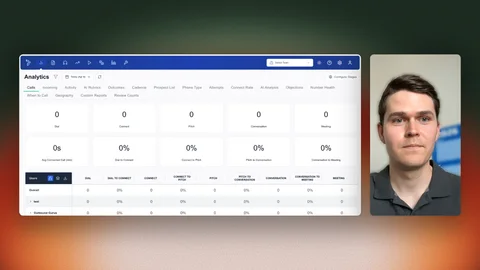 2:29
Explore the Live Listening dashboard and how live monitoring connects with Salesfloor.
Watch guide