
 1:55
Power Dialing vs. Parallel Dialing
Compare the workflows: power dialing calls one line at a time, while parallel dialing calls multiple lines and connects the rep when someone answers.
Watch guideLearn to navigate LinkedIn conversations with the Trellus inbox workflow.
Recorded walkthroughs may show earlier screens or settings.
Choose a chapter to move the player to that moment. Press play if needed.
Hey, this is Michael with Trellus, and today we are going to be going over our LinkedIn inbox management feature on our browser application.
So on my screen right here you can see we're just at our analytics page. This is the default landing page that you'll go to for 99%
Of the time. But what we'll want to do is navigate in our top ribbon over to this LinkedIn icon here. So clicking that, it will bring you to essentially your DMs page on your LinkedIn profile. How this works is if you are logged in on the browser that you're working on here, it will take that data and that profile and automatically load it into Trellus here. So it makes it very easy if you're already logged in. All right, now what does this actually do for you here? So we're going to use Suji as an example because she also works at Trellus, so she'll be our guinea pig here. The most important features that we have are the simple snippets and voice notes. So there's a couple different ways to do this. But the easiest way is just to go to your chat box here, press your slash and you will have the option of leaving automated snippets or voice notes if you have been prerecorded. We'll start with snippets because it's a lot, just a lot more common these days. So you have your, obviously your options, your pre built responses. Here in order to configure those, we'll just press configure. It'll take you to your settings screen over here, down to your LinkedIn and there's your snippets. So if you need to access it from a different window, just go to your settings down to your snippets here. Under LinkedIn here you can edit and create new snippets as you'd like. You can obviously create the global ones. This is the default. But you can also create team snippets. So if you want to keep everything consolidated for a specific group, you can do that. So we'll go back to the message here and we will do our slash to bring this menu up. And now we can do our voice notes. So very similar to how we do the snippets. You can leave your voice note once you record it or you can configure it in the same screen with your settings to LinkedIn. Down to voice notes here you can delete, you can edit, and then you can record new voice notes as you want to leave them the last little aspect here, a couple minor things. You can flag people if you want to add them to a particular sequence. You can, can call them like let's say lead in progress. You just do that here. Keeps things a little bit more consolidated. You can snooze chats. You can also sync them with your CRM. If you have a particular, let's say campaign, going, you can link these conversations to those actual campaigns in your CRM. You can also archive which will be over in this left hand window over here to access those. And then if you want to just leave a one off, voice note down at the bottom. You have your ribbon down here, your voice note image upload file upload emoji, kind of Your standard, LinkedIn, features down there. So beyond that that is a general Overview of our LinkedIn inbox management system over here at our Trellus application for browsers. If you have any questions, feel free to reach out to us directly. We always love hearing from you and we look forward to working with you guys more. Appreciate you watching.
Transcribed from the recording, with product names corrected.
1:55
Compare the workflows: power dialing calls one line at a time, while parallel dialing calls multiple lines and connects the rep when someone answers.
Watch guide 2:24
Get an introduction to the Trellus parallel dialer, real-time coaching, and AI practice bots.
Watch guide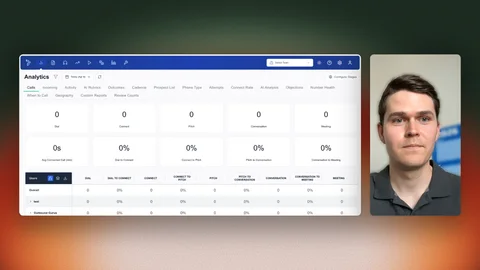 2:29
Explore the Live Listening dashboard and how live monitoring connects with Salesfloor.
Watch guide