
 4:16
Using Trellus Dialing in Outreach
Walk through setting up and using the Trellus integration inside Outreach.
Watch guideA seven-minute Trellus walkthrough for Outreach: filter due call tasks, use the dialer controls, manage calls and in-call tools, and dial special lists.
Recorded walkthroughs may show earlier screens or settings.
Choose a chapter to move the player to that moment. Press play if needed.
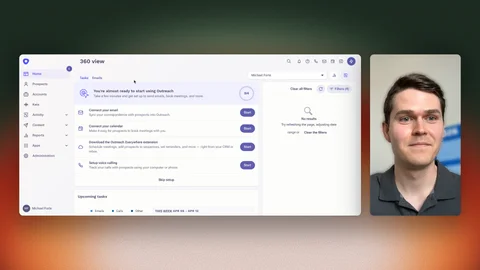
Hey, it's Michael with Trellus, and today we're going to be going over our integration into Outreach. So to start, from our Outreach page here— this is just my regular home page— I'm going to scroll down to where you can see my due tasks for the day, and then you'll notice that we embed a Parallel Dial Tasks button inside of here too. So by clicking on this, what it's going to do, it's going to open the dialer on the right-hand side as well as load my current tasks into the dialer. Now you can also do this kind of a more roundabout way, but you can do this from the Start Tasks view as well. So if you pull up the first contact here, you can also click for Parallel Dialer, and then it pulls up the same interface. So kind of 2 different ways you can do that.
Now to start, what we'll notice is that I have 4 dialable tasks and 6 filtered tasks here. What we'll always do is we'll tell you why we filter out certain tasks. So like if there's not a phone number available, Or if there's a DNC list that we're trying to prevent you calling, then you will absolutely be able to see those inside of your Filtered tab. Some of the more common ones in here are if it's outside of calling hours, maybe for an international customer, or maybe if it's not a call task, we'll also filter that out. So just be aware if you do see things in the filtered side, go ahead and click in because we'll always tell you why they're getting filtered out.
Now, some basic controls you need to know before you start dialing is really up at the top here in this upper left-hand quadrant. The play button obviously starts calling, so if I were to press this, it will call Eileen and then move on to Anne-Marie, so on and so forth. The button to the right of that is where you'd select how many lines you want to call at one time. 1x is your power dialer, and then 2x to 5x is going to be parallel dialing. Just below the play button is your voicemail drop, where you can pre-record a message with this microphone button and then just select whichever option you want, and then anytime you get a voicemail greeting, it will leave that message for for the prospect. To the right of that, this is a screener drop. Now, this is only for parallel dialing, and essentially what it does, it operates the same way as the voicemail drop where the microphone pre-records the message, and then you select whichever one you want to use, except instead of looking for a voicemail, it looks for an AI screener. So the reason this is important, let's say if you're calling 3 people, if this is not enabled and you receive a screener message, we're going to patch you through to that screener message because it's not a voicemail, so it could potentially be a human, right? That's all fine and dandy, but realistically, whenever you get those screeners, it usually ends up being a voicemail anyway. And then you're also hanging up on those other potential lines that could be call connects with clients. So the reason we put this in is if it's enabled, it will ensure that you only get patched through to a human if the human picks up. Now, to the right of that, we have a couple more filters. This is just for phone number prioritization. So you can move these around, or you can simply deselect if you don't want to bring these into your lists. This is also where you can double dial or double tap, as some like to call it here. And then to the right of this is where your time zone and location filters are. So with this, you can set a specific time window that you want to be calling in. You can set a time zone, you can set a country or state depending on where you are going to be targeting throughout the day. And then of course, if somebody's local time is outside of this preference or they don't meet your time zone, country, state criteria, we filter them out and they will go again back into this filter tab here. Now, a couple of other things as we're going through here. You can listen to music while you dial— Spotify, YouTube, Apple Music all supported— and then the audio will pause as soon as you get connected to a call. Dark mode over here in the upper right, and then this is where you actually close out of the dialer too.
Now, from a workflow perspective, as you were dialing, we're going to pull up the contact page of the person who you are calling. If you're on 1X here, it is immediately upon dial. If you are on 2x to 5x, it is upon connect. So when you do connect with somebody, we'll pull up their page so that you can get all the context for the call. As you continue to go, we will log completed call activities under their activity page for you to go and reference. And then of course, as you move through, we will load more tasks in as you create them. Now, if you are parallel dialing, let's say we're calling 3 people again, and you get connected to 1 person, those other 2 lines are going to be disconnected. Those disconnected lines go down into this canceled folder. So this is a really easy way to go back maybe halfway or at the end of your call block, and then go back and redial those people who you never got to either leave a message for or potentially even talk to. So an easy way to do that is through this canceled tab. Additionally, inbound calls get stored in this inbound tab. As they come through, you will see them pop up on your screen to live answer. But if for whatever reason you do miss them, we put everything in the same tab, much like your canceled section. So you can go back through and re— call those people very easily. And then, of course, your Log tab over here, very straightforward.
Now we have below this some quick mic and speaker settings. So if you needed to quickly change things around, you can do that here. Alternatively, you can also do that in the speaker icon down here where you can select more input and output devices, test each device, and then we have a couple of other more in-depth options in here for you as well. Now the buttons down at the bottom, we have this keypad here, which allows you to navigate like number trees or any extensions while you're on the call. So just an easier way to go about navigating the phone itself. We have extra notes here. So if you wanted to log notes live on the call, just so that you can remember later on in the call, this is absolutely doable for you. Any notes that you type in here get synced with post-call notes that we will generate for you at the end of each call. So you're not going to lose these after the call is over. They just go straight into the post-call notes along with what we populate there. Now, if you wanted to make a one-off call that is not related to auto dialing, you can certainly do that here. This is where you simply punch in a number and then press dial, and then it will call that individual. We do also have a click-to-dial option. On that note, it is this green call button, and this will actually prompt you to log a completed call on the contact. So the differentiator between this and the call button here is that this is not necessarily linked to a contact. Where this call button is linked to the contact that you're on. And then the last thing on the bottom right, this is where your settings are. So more customized workflows if you wanted to modify some things around like the speed to dial and things of that nature. Everything is down here for you to modify in the bottom right.
Now, one other feature I think is worth mentioning is this Special Lists option. So if I click on this, it pulls up a little bit of a different view here. The reason this is here is that you can actually choose a specific filter. Filtered category, right? So if I wanted to call somebody who, let's say I want to filter only by people who I've left voicemails for, then I can filter that here. You can also filter by maybe you got in touch with a gatekeeper and you want to try those people again. There's quite a few different options in here. All you have to do is select which one you're looking for and then select what time frame you want it to pull your data from, and then press load, and then they will filter in. So a little bit more in-depth filtering for your tasks that you load in. That just about does it for the dialer. I appreciate you watching. Of course, if you have any questions, please let us know. We're more than happy to help out, and we're looking forward to working with you. Thanks.
Transcribed from the recording, with product names corrected.
4:16
Walk through setting up and using the Trellus integration inside Outreach.
Watch guide 1:55
Compare the workflows: power dialing calls one line at a time, while parallel dialing calls multiple lines and connects the rep when someone answers.
Watch guide 2:24
Get an introduction to the Trellus parallel dialer, real-time coaching, and AI practice bots.
Watch guide