
 3:21
Using Trellus Dialing in HubSpot
A tour of Trellus in HubSpot: power vs. parallel dialing, launching from contacts or lists, dialing settings, AI notes and logging, and voicemail.
Watch guideExplore parallel dialing, call notes, logging, and filtering in the Trellus HubSpot dialer.
Recorded walkthroughs may show earlier screens or settings.
Choose a chapter to move the player to that moment. Press play if needed.
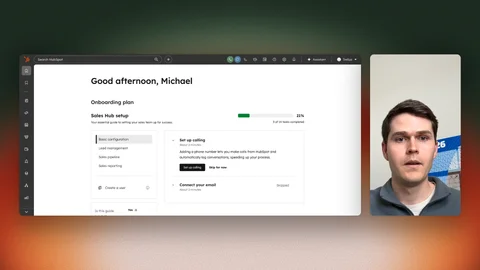
It's Michael with Trellus here. Wanted to record a quick video going over our HubSpot integration and then just a couple of other nice things that you can do inside of the platform. So to start we'll just go through HubSpot real quick. The basic gist of the implementation of this is inside of a Chrome extension. So we'll just have you install this. A couple of clicks it takes to set up and then you pretty much never have to open it ever. You just have everything embedded directly inside of HubSpot. Now the way that everything is configured is you can
Access it via your contacts page, your segments page, or your tasks page. So for example, your contacts page here loads all your contacts and then we embed a blue parallel dial button up here. To launch the dialer inside of your segments, all you have to do is click into your segments, navigate to the segment that you want to call on. So like we'll use my new contacts, for example, and then we put that blue button up in the top right hand corner, much like you saw in Contacts. Then in Tasks you just click into your tasks and we actually put the button in the middle of your page here so you can click to the to click the parallel dial button. It will bring up the dialer as well as the first lead in your contact list. So because I completed all my call tasks, it's just filtering all these out because they're not call tasks. But let's say if I went over to like my segments list for example, down to my new contacts here because it's a big list, and then we can just open it up via here and then it will pull all of my list inside of here as well as my contacts and you can see that are now dialable. So some basic features about the platform.
The workflow is as follows. You set the number of lines you want to call, 1x being your power dialer, 2x to 5x being your parallel dialer, and then you press play. Very, very easy. If you are on 1x as you call new people, it will pull up their contact page so you can see exactly who they're calling, any context behind them, past activities. All that pre call research can be right at your fingertips without actually leaving the platform for anything that's parallel dialing. So let's say we're just calling two people at once. It will pull up the contact page of whoever answers the phone, so that way you'll still know who you're talking to and can have some things to reference. But it's not going to like accidentally feed you the wrong information before you get connected. So just be aware of that. Now everything here is automatic. So no matter
If we're calling 2x1x what have you, once the call is completed, we move on to the next call automatically for you. The way that we operate is, let's say we're calling Ahmed here. We make the phone call, a transcript will populate on your screen so you can see exactly the conversation that's happening. And you can keep track of a couple random metrics there. And then once the call is over, we populate a window where you can verify the call disposition. We will load AI post call notes inside there for connected calls and then you can set a follow up task for this specific user that you are dialing. You could do a date, a specific time, and as it stands right now, upon recording this video, we are going to be implementing a notification feature so that once a follow up call does come through, if there's a time associated to it, the user will get a notification saying hey, you gotta call this person now, don't forget about it. So that will be something that is coming out here very soon. Specifically for you guys. We're gonna build it custom for you. Now when the call is logged, it will populate as a completed call task on the person's page here. So you can see you have the call, the disposition, the specific number that you used to call them with. And then down here will be where the AI summary lives. We also have a link to the recording and transcript if you have that enabled, so that you can access essentially everything that you normally would just inside of a completed call task. We do have the bells and whistles
And the dialer like a voicemail drop where you just pre record the voicemail, select whichever one you want to use and then it will leave that voice message no matter what greeting you get. As long as it's a voicemail, all those voicemails will also be logged as a completed call task, just with the disposition as left voicemail or whatever your disposition set is. A note on that as well. Any dispositions that you have already created inside of HubSpot are respected within the dialer. So when I said that you'll get that window after each completed call where you verify that disposition, all of your dispositions will already load in there. So there's no extra configuration you have to do for that. So moving on, we do have a screener drop here, which is actually pretty cool. I think it is only for parallel dialing, so 2x to 5x. And the way that it works is very similar to the voicemail drop in the way that you record your message, select whichever one you want to use. Except instead of looking for a voicemail greeting, it's looking for one of those AI screeners that are becoming more and more prevalent these days. So for context, in the past, what would happen is that our system would say, hey, there's something on the other end that's not a voicemail greeting. It's probably a human we're going to send you through anyway. Now what this does and changes that is that instead of just randomly patching you through, it leaves that prerecorded message so that then if a human picks up on the other end, it sends you through to the human. So it's a little bit of an efficiency boost there. All these are, of course, no extra cost. They're just built into the dialer. By default. There is quite a lot of filtering that you can do
Inside of the dialer. We do have number prioritization if you want to, toggle which numbers you want to target inside of each person's sequence. Or you have like a time zone location filter, so you can set a window, a time zone, country or state preference. So if you're running specific campaigns, this is where you can filter out certain leads. Arguably the most important feature for any BDR or SDR out there is you can listen to music with the dialer as well. Spotify, YouTube, Apple Music, all supported. And the audio will actually pause itself when you are connected to a call, so you're not fumbling around with any buttons. Some other filters that I think are useful in here. So because you're working with call tasks, it probably won't be something crazy major. But if you have like a very new list that you're calling out of, we do have this filter button here where you can essentially only pull contacts that have never been contacted. So if you're working with the same list day after day, this is a good way to make sure that you are not calling the same people over and over again, or at least focusing on people who you haven't touched yet. All you have to do is click Apply Filter and then it will update your list accordingly. So we'll go ahead and leave that on. Last couple things inside the
Dialer here. We have a Cancel tab here. So the way that this operates is during parallel dialing, let's say we're calling three people if one of those people picks up, we put you through to that person and then the other two lines are disconnected. We don't log anything for those lines because you're not really leaving any messages for them. It's just a basically a hang up. All of those hung up calls go into this canceled tab. So if you wanted to go back at some point in the day and recall those people, this would be exactly where those would go. Think of it like a folder almost to the right of that your inbound calls. So any inbound call that you receive on any of the numbers that we have assigned to you will pop up on your screen so that you could live answer it if you're available. If for whatever reason you can't answer it. We also put them in this inbound folder so that you can go recall those people. And then of course all of your log calls go into the logged folder. So pretty straightforward there. Now going down below here
We do have this special lists option. So this is where you can click into. And what this will let you do is select certain criteria for follow ups or callbacks and things of that nature. So you can filter by certain callbacks that are due today, callbacks that are at like a specific scheduled time. You can also go back and pull on your contacts where you previously had no answers or maybe contacts that you had only talked to the gatekeeper on or even just voicemail. So you can, you can play with this quite a bit, and you know, mess with it as you like to meet your workflow. But this is absolutely an option that we always recommend going in and you know, messing around with, seeing if it'll work for the flow that you have going. All you have to do is select the list and then you can select whatever time period you're evaluating for and then all you have to do is press load. Now I think in this video for whatever reason the list is not populating. So let me just show you like inside of here. It'll show obviously your no answers that you're pulling any voicemail calls that you are wanting to go after. And then of course you know, callbacks at a scheduled time, things of that nature. But I think in the video it doesn't pull like the actual dropdown for the options. So just know that you'll be able to see that when you use this yourselves. Of course to flip back to your regular task you just click switch back and then the last couple of features down for a specific calling standpoint is your keypad for Number trees. So like
The press zero for the operator type situation to the right of that we also have extra scratch paper for your reps. So if they wanted to make note of things live on their calls, they can do that here. All of these notes will sync back to the post call notes at the end of each call so that they don't have to ever miss anything. When logging to the right of that is just your audio settings, pretty straightforward. Your actual one off dialer here. So you can click on this gray phone icon, punch in a number and then just click. Dial won't be automated. It is purely almost like a click to dial standpoint and then in the bottom right your settings so you can certain, you can configure certain you know automations, you know when to hang up things of that nature. All involved inside of here. Now on the note of click to dial
We do embed these buttons in each contact that you have inside of HubSpot. So if you wanted to do some sort of click to dial that's not in the automated sequence, you just go in here, click the call and then press this button to initiate the dial. We do have the ability to text. It is an added fee on top of the application because it is essentially just a added cost that we have to pay for Twilio. So we just pass it through to you guys. But if you want to text we can certainly discuss that. We will pull up any past calls that you have with the contact. So if you wanted to get certain I guess like context for your outreach, if you want to get it more in depth, this is there for you as well. And then if they have a LinkedIn profile you can enable it so that you can either automatically pull up their LinkedIn profile in a separate browser tab or this button will search for any LinkedIn profiles that might be associated to this contact's name. So all options available for you, just let me know if you want to go over texting later on. That really does it for the dialer. Very straightforward. Of course we're happy to answer more questions as you have them. And then I will send up some follow up videos for some of the back end features. Because I know we're running a little over 10 minutes with this video. So I'll send those over. Feel free to view those at your leisure and then we are looking forward to working with you.
Transcribed from the recording, with product names corrected.
3:21
A tour of Trellus in HubSpot: power vs. parallel dialing, launching from contacts or lists, dialing settings, AI notes and logging, and voicemail.
Watch guide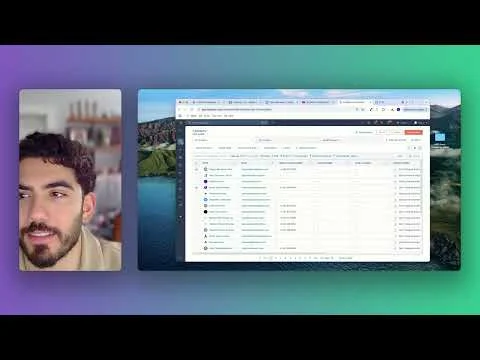 1:55
Learn how to create calling tasks in HubSpot for a Trellus parallel dialing workflow.
Watch guide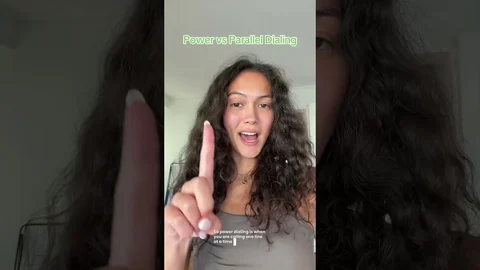 1:55
Compare the workflows: power dialing calls one line at a time, while parallel dialing calls multiple lines and connects the rep when someone answers.
Watch guide