
 10:46
Mastering the Trellus HubSpot Dialer
Explore parallel dialing, call notes, logging, and filtering in the Trellus HubSpot dialer.
Watch guideA tour of Trellus in HubSpot: power vs. parallel dialing, launching from contacts or lists, dialing settings, AI notes and logging, and voicemail.
Recorded walkthroughs may show earlier screens or settings.
Choose a chapter to move the player to that moment. Press play if needed.
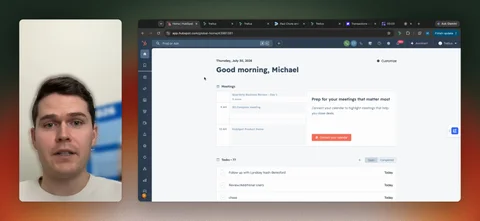
My name is Michael and we're going to be going through a high level overview of Trellus on HubSpot. So as you can see we're at our homepage here. We're going to want to navigate over to our CRM, go over to our contacts if you want. You can do your lists and segments if you want to get a little extra filter in there. But for now we'll keep it simple, keep it at contacts.
So as a general basis, Trellus is a power and parallel dialer, meaning for power you're just using one line and for par, you are calling multiple contacts at the same time on multiple different lines.
So in our contacts page here you'll see to launch Trellus, we're going to be looking for this blue button. You're going to click that and it's going to launch right in your HubSpot profile here. You'll see first off that it does pull up the first contact in the list. So if you have any notes on here, any activities, you can take a look at that already all within the same screen.
In order to initiate the call first we're going to take a look at how many lines we're using. So if we want a power dial, we'll just keep it at 1x but can go up to 5 times parallel dialing if you want to knock out a lot of leads at the same time. Another important thing to look at is this number right here. This is the number of contacts that populate in this window right here. The reason it's only 17 is just because if you load, let's say you have a list of a thousand contacts. If you load all thousand, it's going to bog down and be a little bit slow. So we really don't want that from an efficiency standpoint. So what this will do is it will continue to add more to this pool pool as you work through your contacts. So keep an eye on that number because it will change.
Now, in order to initiate the call, you're going to press this green button up here. It will have a timer start. You can see down here we're not going to call them right now because we don't want to actually be calling these people. But you'll see that red button up there is what's going to stop the call sequence. So for power dialing, if you call after the call, it will have a time limit and move on to the next one which you can adjust. So let's say if you want 10 seconds between calls, you can do that no problem.
After each call, AI will create notes for you, whether that be key takeaways, next steps and suggestions, things like that. If you want to log your own notes, I find this to be pretty helpful. This is just your note screen, so whatever you type in here will also come into the same post call notes that the AI will create for you. And everything will be automatically logged to each customer that you have pulled up here. Each contact.
If you have to leave a voicemail you can pre record them and they will be available to select over here in this button. You can see I haven't record any but they would pop up here. And then one other key feature that I happen to like is this best number. Essentially what this is is it aggregates all of the numbers that we have for you guys and it creates or it uses the one that has the highest potential connect rate for whatever client base you're going at. And it has a couple of different features in here, whether it be spam filter triggers, geographic locations, etc. Etc. But I find that it's very cool because it does optimize it. Per your whatever customer base you're targeting, if for whatever reason you want to use specific numbers for a period of time, you can also manually choose those as well as geographic location and then auto rotate as well. But the best number is the default and we highly recommend it much beyond that. That is a high level overview of Trellus as it applies to HubSpot. Thank you for watching and please buy us.
Transcribed from the recording, with product names corrected.
10:46
Explore parallel dialing, call notes, logging, and filtering in the Trellus HubSpot dialer.
Watch guide 1:55
Learn how to create calling tasks in HubSpot for a Trellus parallel dialing workflow.
Watch guide 1:55
Compare the workflows: power dialing calls one line at a time, while parallel dialing calls multiple lines and connects the rep when someone answers.
Watch guide