
 2:15
Salesforce Walkthrough
See click-to-dial, power dialing, and parallel dialing in this Salesforce walkthrough.
Watch guideSee how Trellus dialing works with Salesforce leads, accounts, and reports.
Recorded walkthroughs may show earlier screens or settings.
Choose a chapter to move the player to that moment. Press play if needed.
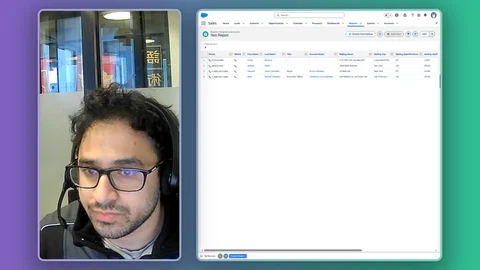
Hey, it's Michael with Trellus. And today we're going to be going over our integration into Salesforce. So inside of Salesforce, once you have our Chrome extension installed, we will embed ourselves in quite a few different areas. A couple
Of examples being your leads list, your accounts, your opportunities, your reports. You can do this in quite a few different areas. So for example, if I wanted to launch the dialer and just like a bulk leads list, I can go into this. You have
My list of leads here and then we have our parallel dial button down at the bottom left hand side of the screen opening that opens up the dialer and then pulls in those leads that you currently have populated here. Another way about going about it is the report section. This tends to be a pretty common way to do it. So if I go into my reports and I just click on a random one here, it looks like I got one person inside here. But we put the parallel dial button down at the bottom left here as well. Clicking on that launches the dialer and then whatever content you have inside of here. Key thing to remember with reports, just have to make sure that phone number is visible for us to pull it up. Now some basic usage on the system as a whole. So we're going to go over to the right hand side where the dialer is at. The first area that we'll want to focus on is this upper left hand side here where these four buttons are.
Play button is very simple. This starts your power dialing. The button to the right of that is where you select how many lines you want to dial at one time. 1x being your power dialer and then 2x to 5x being a parallel parallel dialer.
Just below the play button is your voicemail drop. You record with this microphone icon here and then select whichever option you want to use. It will leave that pre recorded voicemail whenever you receive a voicemail greeting in dialing to the right of that is your screener drop. So it operates the exact same way as the voicemail recording. You just record with the microphone button here and select whichever one you want to use. Now for this particular button, it is specifically designed for 2x to 5x or parallel dialing. And the way that it works is if we're calling two people at once and one of them has a screener, it will leave that prerecorded message for that screener while also dialing that other line too. So that way you're not having to hang up and go to that screener. It will only patch you through when a human picks up. Now, just to the right of that we have our number prioritization. So this is where you can say maybe if you have multiple lines for a different person, you can prioritize the work number or the mobile number first or even just deselect numbers that you don't even want to pull. This is also where you dictate the amount of taps that you do. So if you want to do double tapping, you just flip this to two and then the button to the right of that is your time zone filtering. So this is either a time window for the local, like local time that you're calling into. You can also set a time zone that you want to call into a country or a state. You can also exclude locations as well. Realistically how this works is that if a person's area code and their phone number does not fall within this calling window or any of these other criteria, we filter it out so we're not going to call somebody accidentally at off hours or during awkward times. You can configure this all here to be custom to your particular call block.
Couple other things you'll notice we have dialable and filtered tasks here. Now, because I don't have a ton of data, we don't have any filtered tasks. But in your instance I suspect occasionally you'll see a couple of filtered tasks. You can always click into here and see which tasks are being filtered. It will always tell you why they're being filtered. So we always recommend taking a look in there. If you do see a couple are getting sent into this section here. A couple other things here as well. As you are power or parallel dialing 2x to 5x, you'll notice that it will connect you to the call that is first picked up and then disconnect all other lines. Those disconnected lines go into this canceled tab right here. So you can click into it and then recall those folks who you had previously not connected with before. Additionally, inbound calls will pop up live on your screen, but if you do miss them, they go into this inbound tab here and then any log calls you make will be in this log section here as well.
Moving down below, you'll when you first launch the system, you will have to initialize your audio. So if I were to click on this, it will prompt my audio getting ready and then now everything is connected. Here is where I can also set my mic as well as my speaker or output. You can also modify these down here with this speaker icon here as well where you can test each device.
Now, further down we have our keypad here. This is where you can navigate extensions, navigate number trees. This is purely live on the call. This is not to dial. Next to that we have scratch paper. So any notes that you type in here will also be logged in addition to an AI post call note summary for each connected call. But you can take notes live on the call for reference later on if you would like. And then the last little button down here is your phone icon. And this is a one off dialer. So if you wanted to punch in a number and call, you can do that with this section. It has nothing to do with your auto dialer. This is completely separate. And then two last buttons down here in the bottom right. This button will pop out the dialer so you can move it around the screen if you would like. In order to move it back, you just click dock right here. And then your settings just at the very bottom right, where you can modify some workflow, patterns, or if you wanted to modify some dialer settings, this is where you would do all that. All right, so that just about does it for the dialer, of course. If there's any questions, please feel free to reach out. More than happy to answer any questions, but appreciate you watching.
Transcribed from the recording, with product names corrected.
2:15
See click-to-dial, power dialing, and parallel dialing in this Salesforce walkthrough.
Watch guide 1:55
Compare the workflows: power dialing calls one line at a time, while parallel dialing calls multiple lines and connects the rep when someone answers.
Watch guide 2:24
Get an introduction to the Trellus parallel dialer, real-time coaching, and AI practice bots.
Watch guide