
 5:28
Trellus Salesforce Integration
See how Trellus dialing works with Salesforce leads, accounts, and reports.
Watch guideSee click-to-dial, power dialing, and parallel dialing in this Salesforce walkthrough.
Recorded walkthroughs may show earlier screens or settings.
Choose a chapter to move the player to that moment. Press play if needed.
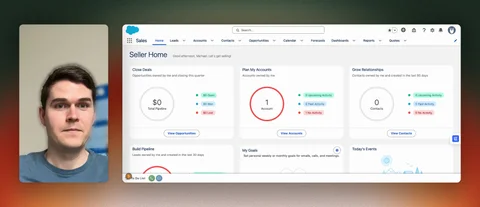
Hey folks, this is AJ, just giving you a quick walkthrough of how the Trellus dialer works inside of Salesforce to give you both click-to-dial, parallel dial, and power dial capabilities.
So at a high level, the way that this is going to work is whenever you go to any sort of report or list view inside of Salesforce, whether that's a list of leads, a specific type of report, any type of report, honestly, you're going to see this new button at the bottom that says Parallel Dial. When you click it, it's going to load in exactly what you have listed in Salesforce. And so what you see is what you get system. After that, it's pretty much going to work the standard way that the regular Trellus dialer works.
And so on the right-hand side here, you're going to be able to set the number of lines that you're calling with at the same time. If you want to do power dialing mode, that's 1x. Anything above that is parallel mode. And then over here, this is how you drop voicemails. Next part is how you do the different number strategies that Trellus has to offer.
It's gonna work regularly as your normal dialers have with Trellus and different platforms, but the basic requirement here is when you do press play, we will actually navigate you to that contact that you're calling. So in this case, it's gonna navigate me to Craig's contact before it dials, and then automatically, if I— obviously, kept it, it'll keep moving me to the next contact automatically. Totally hands-free. We will then write your call logs back directly into Salesforce for you so that you can then use those to generate reports however you like.
The next part about how Trellus works integrates with Salesforce is as a click-to-dial functionality. So what I mean by that is there will be this new button that shows up on contact objects, account objects, report objects, whatever you think about, where if you click Call, it will show you the phone numbers available on that contact, and then you can hit it to go and call them. So in this case, It's gonna go and call that specific number for Craig. It's gonna place him a call, and then obviously, you know, he'll go through, and I can hang up if I want here.
I can then, you know, disposition the call and then log it. These dispositions are fully customizable to whatever you would like, and then as soon as you log it, it'll push it back into Salesforce for you. Cool.
But yeah, at a high level, that's how Trellus will operate inside of Salesforce for you. So you add the Chrome extension, you get your phone numbers set up, and then you come in here, and then pretty much it will just work out of the box. Cool. Happy dialing.
Transcribed from the recording, with product names corrected.
5:28
See how Trellus dialing works with Salesforce leads, accounts, and reports.
Watch guide 1:55
Compare the workflows: power dialing calls one line at a time, while parallel dialing calls multiple lines and connects the rep when someone answers.
Watch guide 2:24
Get an introduction to the Trellus parallel dialer, real-time coaching, and AI practice bots.
Watch guide