
How to Log External Calls in GoHighLevel
Choose a logging method for your dialer, business phone, voice AI agent, or custom app. Map incoming and outgoing calls and check the result on the right HighLevel contact.
Trellus adds power and parallel dialing inside the CRM your team already uses. See pricing Book a demo
On this page
To log an external call in GoHighLevel (GHL), use your phone platform’s HighLevel integration if it already writes to Conversations. Otherwise, send the finished call to a HighLevel workflow with the Log External Call action, or write it through the Conversations API if you manage a Call provider. Each path needs the correct HighLevel sub-account and contact. HighLevel’s workflow documentation
To check a setup, place one call to or from a number your team controls. Open the contact in Conversations and look for a call entry with the expected direction, time, and status. A rep’s note or callback task can be useful alongside that entry. Verify each record your team needs.
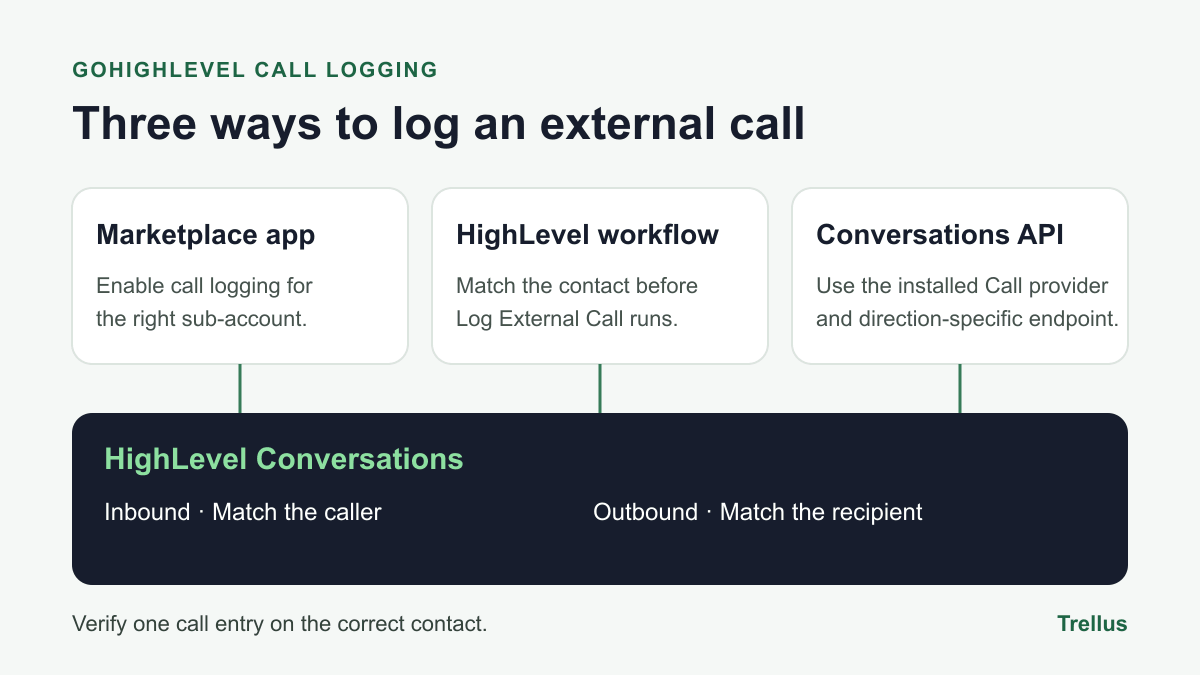
Which HighLevel call logging method should you use?
| Where you make calls | Start here | Check before rollout |
|---|---|---|
| A dialer with a HighLevel integration | Use the vendor’s Conversations or call-record setting. Trellus and JustCall have documented paths. | Connect the correct sub-account and confirm which reps, numbers, and call types are included. |
| Aircall, Dialpad, RingCentral, or another business phone | Use a supported HighLevel connector if it gives you the record you need. Otherwise, send the finished call from the provider’s events or Call Log API into a workflow. | Check how shared lines, transfers, missed calls, and recording access appear. |
| Twilio or a custom phone system | Capture call completion, map the call data, and send it to the workflow or the Conversations API. | Choose the customer-facing call leg and keep its ID for retries. |
| Retell, Vapi, or another voice AI agent | Use a post-call event. Send approved summaries or recordings only when they are ready. | Check a failed call and a human transfer as well as a completed agent call. |
| Zapier or Make | Start with the phone platform’s completed-call trigger or webhook and send JSON to an Inbound Webhook in HighLevel. | Confirm the trigger provides the call ID, both numbers, direction, timestamp, and final outcome. |
| A Marketplace Call provider or integration you maintain | Use the inbound or outbound Conversations API endpoint with a sub-account token and installed provider. | Check contact matching in that location and keep the returned HighLevel message ID. |
| Mobile calls, a spreadsheet, or historical records | Enter a contact note for occasional manual follow-up. For a Conversations backfill, send an authorized export through the same mapping used for live call records. | Keep the original call time and test the import on a small batch before proceeding. |
Set up the Log External Call workflow
- Open the destination sub-account. Under Automation → Workflows, add an Inbound Webhook trigger and copy its URL. Route each phone account or line to the correct sub-account. Keep the URL with your integration credentials. Inbound Webhook setup
- Send one representative event. Use a test contact and a completed call payload. Load that sample in the trigger so HighLevel can offer its fields as mapping values. If you change the field names later, refresh the mapping sample.
- Find the contact. Branch on direction. Look up the external caller’s From number for an inbound call, or the external recipient’s To number for an outbound call. Normalize both numbers to E.164. Handle shared numbers, missing matches, and multiple matches before enabling automatic contact creation.
- Add the call record. After the contact is resolved, add Log External Call. Map Direction, Date, From, To, and Call Status. Map Attachment only when the integration can supply a compatible recording reference. Keep the original From and To values in both branches. Contact and field mapping in HighLevel
- Verify Conversations, then roll out. Test inbound and outbound calls against controlled numbers. If the webhook arrives and the call is missing, inspect the workflow’s Execution Logs for the direction branch, contact match, and call action in that order.
A sample payload for your workflow
This is a sample JSON shape for the webhook you configure. Map the keys to the HighLevel action in the workflow editor. Use the actual phone platform data and verify the date, status, and attachment formats in your sub-account.
{
  "source": "acme-phone",
  "external_call_id": "demo-call-001",
  "direction": "outbound",
  "occurred_at": "2026-11-21T15:04:05Z",
  "from": "+14155550101",
  "to": "+14155550102",
  "call_status": "completed"
}
In this example, the contact lookup uses +14155550102. For an inbound test from that same contact, put +14155550102 in from and your business number in to. The integration uses external_call_id to recognize a repeat delivery. The workflow action’s listed fields have no slot for that ID, so keep it in your adapter or automation storage.
Where to get call data from each platform
Trellus, JustCall, WAVV, and Kixie
Trellus. In GoHighLevel connection setup, choose the linked sub-account and confirm the rep has access. In eligible workspaces, a Trellus admin can enable native call records after checking for a workflow that already logs those calls. Use a controlled Smart List call and check both the conversation timeline and the contact note. Trellus native call-record setup
JustCall. In the JustCall web portal, open the connected HighLevel integration under My Integrations. In its settings, enable Log calls, SMS, and voicemails in HighLevel conversations if that set of records matches your needs. Check which numbers and teammates are in the integration, then test an inbound and outbound call. JustCall’s HighLevel settings
WAVV. If recording is enabled for your plan and settings, try opening a saved recording in both WAVV History and the contact’s GoHighLevel Conversation panel. Check a no-answer call separately if you need to see every attempt in HighLevel. WAVV recording locations
Kixie. Its HighLevel integration logs call activity to Conversations and can save a disposition or call notes on the contact. Kixie documents matching by phone number and selecting the newest record if duplicates exist. Test a shared or duplicate number before relying on the match. Kixie’s HighLevel logging behavior
Aircall, Dialpad, and RingCentral
- Aircall. Use
call.endedfor the finalized record. Use the call ID to match a latercall.comm_assets_generatedevent when recording or voicemail files lag. For historical calls, Aircall also documents reading records from its Calls API. Aircall webhook events and Calls API overview - Dialpad. Use Call Events and check the
hangupevent for the call you want to log. Inspect the customer’s external number, call direction, and start time. When a call transfers, correlate the related call IDs before writing a second record. Dialpad Call Events - RingCentral. Use Telephony Session Notifications to follow the call, then fetch the detailed Call Log for the outcome you want to record. A party can disconnect during a transfer or pickup, so check the customer-facing session and its related legs before writing the final entry. RingCentral session notifications and Call Log data
Twilio
For calls handled by your own Twilio application, configure the completion status callback and read CallStatus for the actual outcome. Twilio’s completed callback event also covers outcomes such as busy or no answer. Keep CallSid for the call you chose to log and use RecordingStatusCallback when you need to know the recording is ready. If you’re connecting an existing Twilio number for HighLevel to receive calls itself, follow HighLevel’s separate Twilio number setup. Twilio Call resource and HighLevel’s Twilio number setup
Retell AI and Vapi
- Retell. Use
call_endedfor the outcome of the agent call. If you need post-call analysis, usecall_analyzedalongside the samecall_id. For a live transfer, decide whether HighLevel should show the agent portion or the full interaction, since the transfer can continue after the agent’s portion ends. Retell call events - Vapi. Receive
end-of-call-reportat your Server URL. Use the call object and ended reason to build the call entry. Include a recording or summary only when that artifact exists and the team has permission to share it. Keep the same call ID if your app receives more than one event about the call. Vapi Server Events
Zapier and Make
Use a phone app’s completed-call trigger or receive its webhook. Normalize the fields, then send a JSON POST to the HighLevel Inbound Webhook using Webhooks by Zapier or Make’s HTTP → Make a request. If your connector receives separate events for answering, hanging up, and recording readiness, filter the workflow to the event you want to create the record. Test that a repeat delivery produces one Conversations entry. Zapier webhook requests and Make HTTP module
Log call records through the HighLevel API
Use the Conversations API if you manage the installed Call provider and can authorize the integration for each sub-account. For the v3 endpoints below, use a sub-account bearer token with the conversations/message.write scope and send Version: v3. Send type as Call, the provider’s conversationProviderId, and either contactId or conversationId. Supply the applicable date, nested call information, and any compatible attachment. The phone in the applicable field should match the selected contact in that location. HighLevel Call provider setup
| Direction | Endpoint | Match the contact against |
|---|---|---|
| Inbound | POST /conversations/messages/inbound | call.from |
| Outbound | POST /conversations/messages/outbound | call.to |
Sample outbound request body
Send this JSON to the outbound endpoint with your installed provider ID and the matching contact ID. This is the Conversations API shape. The workflow webhook example above uses your own field names.
{
  "type": "Call",
  "contactId": "YOUR_CONTACT_ID",
  "conversationProviderId": "YOUR_CALL_PROVIDER_ID",
  "date": "2026-11-21T15:04:05Z",
  "call": {
    "from": "+14155550101",
    "to": "+14155550102",
    "status": "no-answer"
  }
}
Keep the returned messageId and conversationId with your provider’s call ID. For retries, check your own record of which calls have already been written. If a request times out after sending, look for the resulting conversation entry before retrying an uncertain write. Apply the same checks to old call imports and test whether existing automations run during a backfill.
Test five cases before enabling live traffic
| Test | Expected result | Where to look first if it fails |
|---|---|---|
| Inbound call from a known contact | One inbound record on the contact in the intended sub-account. | Direction branch, From number, and location mapping. |
| Outbound call with no answer | One outbound record with the mapped no-answer status. | To number and terminal outcome. A completion event can describe a missed call. |
| Same event is delivered twice | One Conversations record. | Use the combination of provider, source account, destination location, and stable call ID in your duplicate check. Check whether a Marketplace app and workflow both write the record. |
| Recording becomes ready later | The appropriate rep can open the recording if your integration provides one. | Confirm permission, link expiry, and provider support for updating the existing record. |
| Call should trigger a workflow | The intended contact enters the test workflow once. | Inspect enrollment history and the actual filter used, such as Call Status or Custom Disposition. Run this check independently from the timeline check. |
Keep one owner for writing the call entry in each sub-account. Verify provider webhooks using the vendor’s supported authentication, keep tokens out of browser code, and limit recordings and notes to what the people with CRM access need. Start with a queue or test sub-account if live follow-up workflows would act on the new record.
Frequently asked questions
Does Log External Call require an Inbound Webhook?
It uses values available in the workflow. An Inbound Webhook is a common way to receive those values from a phone or voice AI platform. Use an existing workflow context when it already carries the call data and the matched contact. HighLevel Log External Call documentation
Will an external call record fire Call Details or complete a Manual Call task?
Check the exact enrollment and task behavior in your sub-account. Call Details evaluates filters such as direction, system call status, and Custom Disposition. A Manual Call task has its own completion flow. Confirm the workflow execution and the status of the original queue item after a controlled call. HighLevel’s Call Details trigger and testing a HighLevel Manual Call task
Why did HighLevel log the same call twice?
Check whether a vendor integration and a workflow both create an entry. In custom setups, also check repeated webhook deliveries or multiple legs of a transferred call. Choose one record writer and track a stable provider call ID across retries.
Will externally logged calls appear in HighLevel’s call reports?
Validate the report you actually use. Start with a known test call in Conversations, then check the report’s date range, source, and status filters against it. If your dashboard depends on duration, attributed source, or an assigned rep, confirm those values in that report before switching your team’s metrics. HighLevel Call Reporting
Can I import historical calls from a CSV?
For a Conversations history backfill, use the CSV as the input to a controlled workflow or API import. Include the original timestamp, direction, caller, recipient, outcome, and a stable call identifier. Test a few rows for contact matching, duplicates, and workflow side effects before sending a larger batch.
If your reps also need to place calls from the CRM, use the GoHighLevel Smart List setup guide to test the first call and its follow-up together.