Best Parallel Dialers for HubSpot: Compare the Workflows
Choose a HubSpot dialer by where reps start, how they call and what gets saved—not by the largest line count.

On this page
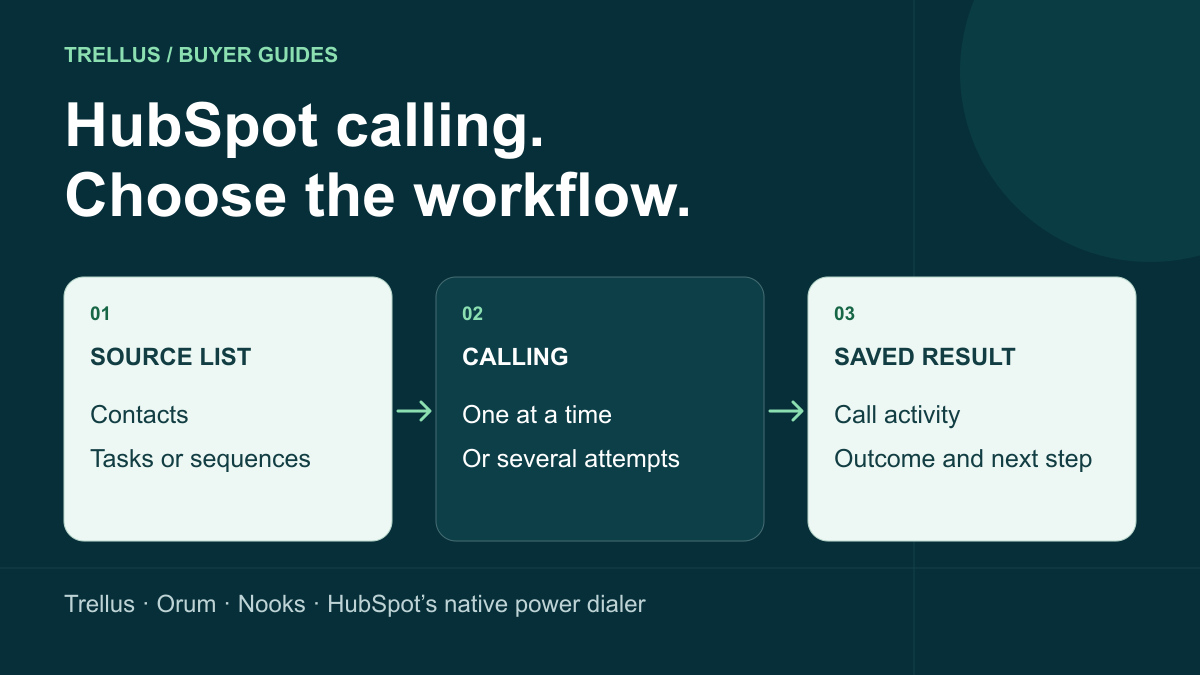
The right HubSpot parallel dialer starts with the work your reps already have. Shortlist Trellus when you want to call beside HubSpot contacts and tasks; Orum when you want a dedicated dialing workspace for due tasks and shared segments; and Nooks when you want HubSpot calling alongside a virtual salesfloor. If one call at a time is enough and you already have Sales Hub Enterprise, evaluate HubSpot’s own power dialer first. For two-way summaries, see Trellus vs. Orum and Trellus vs. Nooks.
Trellus publishes this comparison. Vendor product, integration and help pages were checked on October 21, 2026. This is a workflow comparison, not a head-to-head call-performance test or an exhaustive vendor ranking.
See the Trellus HubSpot workflow
Watch Michael demonstrate the Trellus HubSpot dialer: opening the dialer, working a calling list, handling post-call actions, and using filters and follow-ups. The recorded guide includes chapters for voicemail and screener drops. Use it to see the product before requesting a demo.
Parallel dialing versus power dialing in HubSpot
Parallel dialing places multiple outbound attempts at once to find a live conversation for one rep. Power dialing works through a list one number at a time. Five concurrent lines means five attempts can be in progress; it does not mean a rep holds five conversations or gets five answers.
The distinction matters when comparing reports. An attempted call, a detected human pickup, a conversation with the intended prospect, and a booked meeting are different events. Ask how each dialer handles two people answering close together, cancels other ringing lines, and counts those attempts. For example, Nooks documents that its other lines hang up when one connects; those canceled calls stay on the list and do not count as logged dials.
Use our parallel dialing guide for the mechanics and power versus parallel decision guide to choose a mode for the list you actually call.
HubSpot dialer shortlist by workflow
These three parallel options have documented HubSpot workflows. The native HubSpot option is included as a one-at-a-time baseline. Start with the row that matches your team’s daily work, then check its setup and logging details below.
| Option | Starting point | Calling mode | Useful fit |
|---|---|---|---|
| Trellus | Supported HubSpot Tasks, Prospecting, Contacts and Companies views | Power; parallel on an eligible plan | Reps who want HubSpot record context beside the calling workflow |
| Orum | HubSpot due call tasks or segments loaded in Orum | Power and parallel | Teams organizing call blocks in a separate dialer, including shared segments |
| Nooks | HubSpot contact lists, sequence call tasks or one-off tasks loaded in Nooks | Power; parallel when enabled | Teams that want calling and a collaborative salesfloor in Nooks |
| HubSpot native power dialer | Contacts selected in HubSpot’s Contacts index | One call at a time | Existing Sales Hub Enterprise teams whose main need is an orderly call queue |
Trellus: call beside your HubSpot contacts and tasks
Trellus for HubSpot adds a Chrome calling workflow to supported task, prospecting, contact, company and record views. Choose the audience in HubSpot, open Trellus, and use one-at-a-time power dialing or up to five parallel lines on an eligible plan. Contact and company context stays available during the conversation.
What returns to HubSpot: supported calls can save timing, duration, direction, status, call disposition, notes or summary, and a recording URL when available. Calls use the relevant contact and company associations. Task workflows can complete the originating task, and a scheduled callback can create a call task linked to the relevant record.
Setup and fit: use Chrome, connect the necessary account access, and confirm the HubSpot views, permissions and phone fields your team uses. Check the current Trellus plan for parallel dialing and team features. Choose Trellus when keeping the calling block close to HubSpot matters more than moving reps into a separate outbound workspace.
Orum: due tasks and shared segments in a dedicated dialer
Orum loads HubSpot call tasks and segments into its dialer. Its rep quickstart says task-based lists include call tasks assigned to the rep that are due or overdue; segment lists contain their current contacts. Reps refresh the list in Orum to bring in changes. Its current dialer page describes power dialing and up to five simultaneous parallel lines.
What returns to HubSpot: Orum documents CRM activity logging for completed, dispositioned calls and maps dispositions to HubSpot outcomes. Its HubSpot task-completion rules distinguish Connect, No Answer and Left VM from busy, failed, canceled and unhandled dial-tree calls. Do not assume that every attempted number completes a task. The public sources reviewed do not provide a complete HubSpot field-by-field call payload; ask to see your required notes, recording and association fields in a demo.
Setup and fit: sequence filtering needs the appropriate HubSpot authorization and user permissions; Orum’s sequence guide explains the Super Admin authorization. Consider Orum when due-task selection and dedicated call blocks suit your team. Its Multiplayer mode also offers timed prospect reservations for reps working a shared HubSpot segment.
Nooks: HubSpot calling with a collaborative salesfloor
Nooks supports HubSpot active or static contact lists, sequence call tasks and one-off tasks. Its HubSpot setup guide covers manager-led connection, user mapping and call-outcome setup; pulling individual HubSpot sequences requires the Nooks Chrome extension. The guide also describes completing HubSpot sequence call tasks in Nooks and logging the associated activity. Nooks’ dialer setup includes a Nooks phone number, callback number and parallel-dial setting.
What returns to HubSpot: for HubSpot workspaces with Nooks Sequencing enabled, its activity writeback guide lists call notes, duration, numbers, direction, status, mapped outcome and recording URL for recorded calls. It associates the activity with the contact and its company when one exists. Confirm the equivalent behavior for the Nooks configuration you are buying.
Setup and fit: consider Nooks when you want the dialer alongside its virtual salesfloor. Keep the CRM source clear: Nooks’ CSV documentation says calls from directly uploaded CSVs do not log back to HubSpot, even when HubSpot is connected. Load the audience through the HubSpot integration when CRM call history is required.
When HubSpot’s native power dialer is enough
HubSpot’s native sales power dialer is available with Sales Hub Enterprise. Select contacts in the Contacts index, add them to the power dialer, set wrap time and voicemail preferences, then start the session. A call ends before the next queued call starts. Reps can log notes and outcomes and create follow-up tasks between calls.
The documented setup requires a HubSpot-provided number, browser calling and the calling remote. If you already have that subscription and only need a sequential queue, try this workflow before adding another product. Choose a parallel option when concurrent attempts are part of the requirement.
Run the same HubSpot evaluation with every vendor
Bring a small, permissioned test list and your actual HubSpot task workflow to each demo. A larger dial counter is not a substitute for a completed conversation and usable CRM history.
- Load the right audience. Use one active contact segment and one due call-task view. Check ownership, exclusions, phone-field selection, and what happens after a CRM change or refresh.
- Inspect one conversation. Compare power and parallel modes. Watch when contact context appears, how the rep starts speaking, and what happens to the other lines after a connection.
- Check the HubSpot record. Confirm the outcome, rep owner, duration, notes and recording access your team needs. Check contact and company associations and whether the original task completes.
- Schedule and receive a callback. Verify the next task’s owner, due time and record link. Test where an inbound return call goes when the rep is outside an active session.
- Compare the whole cost. Request the required HubSpot tier, dialer seats, contract term, countries, minutes, caller IDs, parallel limits and team features in the same quote.
Measure target-prospect conversations per staffed hour alongside logged attempts, call quality and completed follow-ups. Use the same definition of a conversation for each product. If the list contains the wrong people or unusable phone data, fix that before increasing concurrency.
HubSpot parallel dialer questions
Does a HubSpot integration mean calls happen inside HubSpot?
No. A dialer may load HubSpot data into its own workspace or add controls beside a supported HubSpot view. Compare the starting screen, the available record context, and the return of call activity separately. “Integrates with HubSpot” does not answer all three.
Should every team use parallel dialing?
No. One-at-a-time power dialing can suit researched account calls where the rep needs preparation before each attempt. Parallel dialing is useful when concurrent attempts reduce ringing time without making the rep lose context. Choose based on the audience and conversation, not the largest available line count.
How do I check Trellus with our HubSpot setup?
Start with the HubSpot integration guide and recorded HubSpot walkthrough. Then bring your usual contact view or task workflow to a demo through the integration page. Review Trellus power and parallel dialing for the wider product and pricing for current plan details.
Sources and comparison method
This shortlist compares documented HubSpot starting points, dialing modes, logging and setup. Trellus details come from the maintained HubSpot integration guide, recorded product walkthrough and current plan information. Competitor details come from their linked public documentation and product pages. Where the sources do not settle a field or configuration, the article names what to check rather than assuming feature parity.
- Orum: HubSpot disposition and display settings, activity logging and HubSpot Marketplace shared-data listing. The sequence workflow above follows the newer linked sequence-authorization guide.
- Nooks: HubSpot integration setup, parallel call behavior and the configuration-specific writeback and CSV guides linked above.