
How to Call a List in Clay
What Clay does and does not do with phone numbers, the steps for calling a table by hand, exporting or pushing it to a CRM or dialer, or dialing the rows directly, and what each route writes back to the table.
Trellus adds power and parallel dialing inside the CRM your team already uses. See pricing Book a demo
On this page
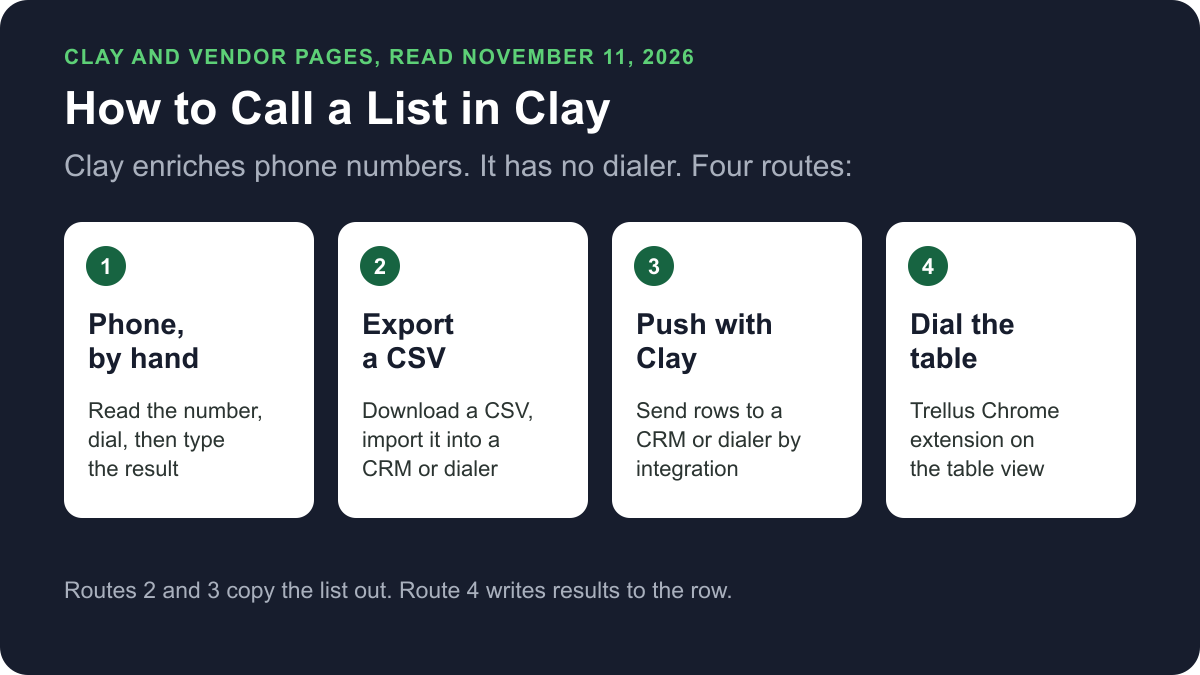
Clay holds and enriches the list. It does not dial it. Clay's own pages describe finding, formatting and screening phone numbers, and its Sequencer guide says there is no dialer. To call a list kept in a Clay table, you dial each number yourself, export or push the rows to a CRM or dialer that places calls, or use a dialer that works on the table itself, such as Trellus. Here is how each route works and what it writes back to the table.
Trellus publishes this guide and sells one of the routes below. Details about Clay come from clay.com and Clay University, Clay's own documentation site, and details about each other vendor come from that vendor's own help centre, all opened on November 11, 2026. The steps are as those pages give them, and nothing was tested.
Ways to call a Clay table at a glance
| Route | What you need | How the call starts | What gets written back to the table |
|---|---|---|---|
| A phone, by hand | Any phone and the table open beside it | You read the number and dial it | Only what you type |
| Export a CSV | An account with a CRM or dialer, and the table downloaded as a CSV | That tool calls from its own copy of the list | Nothing, on the pages we read |
| Push rows with a Clay integration | A Clay plan that includes the integration, and an account with the tool | That tool calls from the records Clay created | No call results, on the pages we read |
| Trellus, a Chrome extension | Chrome, a Trellus plan and at least one phone column mapped | From the current table view, in power or parallel mode | Outcome, history, summary and callback fields on the same row |
What Clay does with phone numbers
Clay's documentation covers four jobs for a phone column. None of them places a call.
- Find. Clay's waterfall guide says to click Add enrichment, search for a data point such as Phone number, and pick a waterfall.
- Format. The Normalize Phone Number action in Clay formatters converts numbers to E.164, international and national formats. With no country code, it defaults to US.
- Check. Clay's ClearoutPhone integration checks whether a number is active and whether the line is mobile or landline.
- Screen. Clay's Meer integration screens a number against national do-not-call registries.
Clay's Sequencer guide calls Sequencer a cold email tool and says it has no dialer and no way to assign tasks to reps.
The Clay pricing page showed four plans on November 11, 2026: Free, Launch, Growth and Enterprise. It says the Free plan does not include phone number enrichment and runs up to 200 rows per table. Launch, which adds phone number enrichment, started at $185 a month on the monthly view and $167 a month on the annual view. Growth started at $495 and $446. Clay's plans guide says phone number enrichment is not available during the 14-day trial.
Prepare the table before you call
Do this in Clay first, whichever route you choose.
- Normalize the numbers. Run Normalize Phone Number on the phone column, with a country code where the number has none.
- Screen for do-not-call status. Click Add enrichment and search for Meer. Under Integrations, select Screen phone number against DNC registries. A workspace admin must accept Meer's compliance terms first.
- Build the calling view. Clay's export lesson says to duplicate the current view and hide the columns you do not need.
Clay's do-not-contact guide says to scrub calling lists against registries at least monthly and to keep an internal do-not-call list.
Call the list by hand
Calling by hand is enough for a short list, or for calls where you prepare for each person. You keep the log yourself.
- Add result columns. Clay's table columns guide says to scroll to the right of the table and select Add column, then choose a data type. Use Select for the outcome, Date for a callback and Text for notes.
- Dial the number on your phone or softphone.
- Type the outcome on the row before you move to the next one.
Export the table as a CSV
Clay's lesson on getting lists out of Clay says CSV exports suit one-time transfers. It gives these steps:
- Open the Tools menu in your Clay table and look for Export. An older Clay lesson names the menu Actions.
- Click Download CSV.
- Import the file into the tool that will place the calls.
Clay says the CSV mirrors the table, and integration fields that show “run condition not met” come out blank. Two vendors' pages show what an import needs.
- Close. Close's Lead Importer page says to click your name in the upper right and choose Import data. The first row should be a header row, and phone numbers should start with + and the country code.
- JustCall. JustCall's Sales Dialer page says to click Create Campaign, choose a dialing mode and upload a CSV. Phone numbers must be in E.164 format. JustCall says this needs its Pro plan or above.
These pages describe importing a copy. None describes writing call results back to the Clay table.
Push rows with a Clay integration
Clay's export lesson says integrations suit ongoing sync. Its lesson on exporting to a CRM says Clay supports HubSpot, Salesforce, Pipedrive, Close, Copper and others. It gives this order, with HubSpot as the example:
- Open the enrichment panel, select the lookup action for your CRM and look up each contact by email.
- Add the create or update action and map the Clay columns to the CRM fields. Clay's HubSpot guide names these actions Look up object, Create object and Update object.
- Set the action to run only if the lookup found no match.
- Test on 10 rows, then check the records in the CRM.
The Clay pricing page lists CRM integrations on Growth and Enterprise, not on Free or Launch. Other pushes Clay documents:
- PhoneBurner. Clay's PhoneBurner page lists an action that sends enriched contacts from a Clay table to your own PhoneBurner account.
- Google Sheets. Clay's lesson on exporting to Google Sheets says the Add Row action adds rows to a sheet, and that the integration needs a paid plan. From there, see how to call a list in Google Sheets.
None of these pages describes a call result written back to the Clay row. The calls and their results live in the other tool.
Dial the table directly with Trellus
Trellus is our product. It is a Chrome extension, installed from the Chrome Web Store, that adds power dialing and parallel dialing to the Clay table view a team has already enriched and filtered. The call result is written back to the same row. The steps below are from the Trellus for Clay page.
- Add Trellus to Chrome from the Chrome Web Store.
- Qualify the audience in Clay. Enrich, score and filter the records into the view to call today. The visible view supplies the rows and their order.
- Map phone and research columns. At least one phone column is required, and Trellus can use more than one.
- Choose power or parallel. The Trellus power dialer calls one number at a time. On an eligible plan, the Trellus parallel dialer calls up to five numbers at once. Rows marked Do not call again (Trellus) stay out of the queue.
- Let the result land on the same row. Trellus records the outcome and the attempt, then adds the available summary, history, wrong-number state or callback date.
There are limits. A callback is a title and due date stored on the row, not a native Clay Sequencer task, and the current callback scan covers up to 250 records. Sending results on to a CRM is a separate Clay automation that you test yourself. The Trellus page says to run one sample call through the result columns before you scale the mapping.
Power is $99.99 per seat per month and covers power dialing in Clay. Power + Parallel is $149.99. Both are bought online with no seat minimum, and there is no free plan or free trial (see Trellus pricing). Watch the Clay dialing walkthrough. To choose a mode, read parallel dialer vs. power dialer.
What gets written back to the table
- Calling by hand: only what you type.
- CSV export or Clay integration: no call results, on the pages we read.
- Trellus: named fields on the source row. They hold the last call outcome, last attempted time, reached-human time, disposition history, the call summary when available, wrong-number memory, do-not-call row state, and a callback title and due date.
Which route fits
- A short list, or calls that need preparation: call by hand. It needs no new tool.
- A team that already works in a CRM or dialer: export or push the rows and place the calls there.
- A list that should stay in Clay: a dialer on the table removes the copying between dialing and logging. The cold calling report gives answer and conversation rates by dialing mode, and best time to cold call has them by hour and weekday.
Before you call a list
Check consent, calling hours and do-not-call status before you dial any list. The cold calling laws by state hub lists those rules for each state. This guide is not legal advice. If calls connect but fewer people pick up, read why calls show Spam Likely.
Troubleshooting
- Phone number enrichment is unavailable. Clay says the Free plan and the trial do not include it.
- A CSV column is blank. Clay says integration fields that show “run condition not met” export blank.
- The push creates duplicates. Clay says to look up each contact first and create only when no match is found.
Frequently asked questions
Can you make calls from Clay?
Not with Clay alone. Clay's pages describe finding, formatting, checking and screening phone numbers, and its Sequencer guide says there is no dialer. You dial each number yourself, export or push the rows to a CRM or dialer, or use a dialer that works on the table, such as Trellus.
Does Clay have a dialer?
No. Clay's Sequencer guide says Sequencer is a cold email tool with no dialer and no way to assign tasks to reps. Clay connects tables to calling tools through integrations instead. Its PhoneBurner page, for example, lists an action that sends enriched contacts to a PhoneBurner account.
How do I export a Clay table to a CRM or dialer?
For a one-time transfer, Clay's lesson says to open the Tools menu, find Export and click Download CSV, then import the file in the other tool. For ongoing sync, add your CRM's lookup and create actions. Clay says to check for existing contacts first and test on 10 rows.
Which Clay plan do I need to push a list to a CRM?
On November 11, 2026, the Clay pricing page listed CRM integrations on Growth and Enterprise. Growth started at $495 a month on the monthly view and $446 a month on the annual view. Phone number enrichment is not on the Free plan or in the trial.
What gets written back to Clay after a call?
It depends on the route. By hand, only what you type. After a CSV export or an integration push, no call results on the pages we read. With Trellus, named fields on the same row hold the outcome, attempt time, disposition history, summary, wrong-number state and any callback.
Sources
Every page below was read on November 11, 2026.
- Clay docs: data waterfalls, formatters, ClearoutPhone, Meer, do-not-contact compliance, table columns and Sequencer
- Clay plans: the pricing page and plans and billing
- Clay lessons: getting your lists out of Clay, Download as a CSV, exporting to CRM and exporting to Google Sheets
- Clay integrations: HubSpot and PhoneBurner
- Vendor pages: Close's Lead Importer and JustCall's Sales Dialer contacts
- Trellus: Trellus for Clay, the Clay dialing walkthrough and Trellus pricing