
How to Make Calls From Smartlead
What Smartlead's SmartDialer does, the steps for each way to call a lead or a call queue, what it costs, and what each route writes back to the lead.
Trellus adds power and parallel dialing inside the CRM your team already uses. See pricing Book a demo
On this page
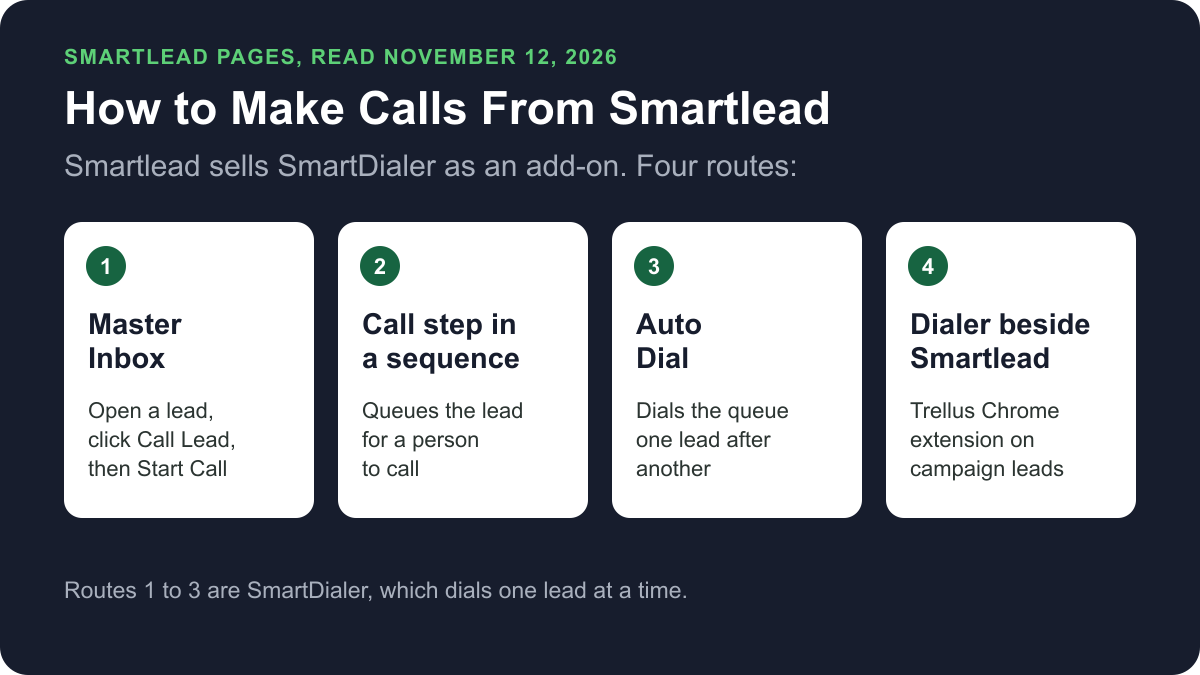
Smartlead sells its own dialer, SmartDialer, as an add-on. With a SmartDialer number you can call a lead from Master Inbox. A Call step in a campaign sequence sends leads to a call queue, and Auto Dial works through that queue one lead after another. A dialer such as Trellus can also call the same leads. Here is how each route works and what lands on the lead.
Trellus publishes this guide and sells one of the routes below. Details about Smartlead come from smartlead.ai, its help center and its changelog, all opened on November 12, 2026. The steps are as those pages give them, and nothing was tested.
Ways to call from Smartlead at a glance
| Route | What you need | How the call starts | What lands in Smartlead |
|---|---|---|---|
| Call Lead in Master Inbox | A SmartDialer plan, a calling number and a phone number on the lead | Open a lead conversation, click Call Lead, then Start Call | The call in the lead's timeline, with the recording and transcript |
| Direct Dial | A SmartDialer plan and a calling number | Under Engage, Calls, click Direct Dial or the call icon on a lead row | The call in Call Logs |
| Call step in a sequence | A campaign sequence with a Call step | The lead joins the Sequence Leads queue. A person places the call | The call in Call Logs |
| Auto Dial | Leads in the Call in Queue tab | Select leads and click Start Dialing. The next lead is dialed once you log the call | Every call in Call Logs and the lead's Call History |
| Trellus, a Chrome extension | Chrome and a Trellus plan | From a campaign's leads, All Leads or the call queue, in power or parallel mode | A note on the lead and a matching lead category. No callback |
What Smartlead does natively today
Smartlead announced SmartDialer in its changelog on February 17, 2026. The SmartDialer page calls it a power dialer and says it “dials your selected leads one at a time, never several at once” (Smartlead power dialer page, checked November 2026). The same page says calls are recorded by default and transcribed automatically, and that you can buy US numbers by local area code.
Smartlead's help article How to Call a Lead from Master Inbox gives the pricing:
- SmartDialer plans run from $9 to $699 a month, depending on the minutes and users selected.
- Calls are billed per minute. Recording and transcription are billed at a higher per-minute rate.
- Some tiers include unlimited minutes.
- US local and toll-free numbers start at $1 per number per month.
The article says the tiers are shown inside the account, under Profile, Settings, Subscription, SmartDialer. The Smartlead pricing page lists SmartDialer among its add-ons. On November 12, 2026 its monthly view showed the email plans at $39 a month for Base, $94 for Pro, $174 for Unlimited Smart and $379 for Unlimited Prime.
Smartlead's article Exploring SmartDialer: Call Queue, Logs & Numbers covers incoming calls. A call to a SmartDialer number can be forwarded to another phone. The article says receiving inbound calls inside Smartlead is not supported yet.
Buy a calling number
SmartDialer needs a dedicated phone number. These steps are from the Master Inbox article:
- In the left navigation, click Engage, then Master Inbox. Open a lead conversation and click Call Lead.
- If you have no number yet, click Buy a Number.
- Search by area code, or choose from the available US local or toll-free numbers. Select one and click Confirm and Purchase.
- Click Make Secure Payment.
The article says the number is provisioned automatically, renews monthly and is tied to one workspace.
Call a lead from Master Inbox
These steps are from the same article.
- Open a lead conversation in Master Inbox and click Call Lead. The button is disabled when the lead has no phone number.
- In the Start a Call window, select Your Number if you own several, and confirm the Client Number.
- Leave Record Call on, or turn it off. It is on by default.
- Click Start Call. Allow microphone access when the browser asks.
- When the call ends, add a Purpose, Tags and Notes, then click Submit. Skip for Now saves the call without them.
During the call, a floating panel shows the timer, Mute, End Call, Add Context and Voicemail Drop. The email history stays visible behind it. The article says a US number can also call international numbers.
Call any number with Direct Dial
The Call Queue article describes Direct Dial, for a call that does not start from an email thread.
- Click Engage, then Calls, and open the Call in Queue tab.
- Click Direct Dial, or the call icon next to a lead row.
- Choose Your Number, enter or confirm the Client Number, and click Start Call.
To call leads that are in no email campaign, click + Import Leads on the same tab. The article says a phone number is mandatory for every lead imported into SmartDialer.
Queue calls with a Call step in a sequence
These steps are from Smartlead's article How to Add a Call Step to a Campaign Sequence.
- Go to Email Campaigns, create a campaign and click the Sequence tab.
- Below the existing steps, click + Add Sequence and select Call.
- Set the Wait for value, in days after the previous step.
- Click Save.
The article says a Call step is a manual dial. It queues the lead for your team to call, and it does not place an automated call. The lead appears under Sequence Leads in the SmartDialer section, with their local time. A banner flags leads that have waited more than 7 days.
Work the queue with Auto Dial
Smartlead's article How to Use Auto Dial Feature in SmartDialer calls this Sequential Dialing.
- Click Engage, then Calls, and open the Call in Queue tab.
- Select leads with the checkboxes.
- Click Start Dialing, or open the dropdown and select Auto-Dial.
- SmartDialer calls the first lead. When that call ends and you have logged it, the next lead is dialed.
- To end the run, click Stop, then Stop Sequence.
The Auto Dial bar at the bottom of the screen shows how many leads are Attempted and In Queue. The article says you can pause a run and resume it. Every call is added to Call Logs and to the lead's Call History.
Power or parallel dial Smartlead leads with Trellus
Trellus is our product. It is a Chrome extension, installed from the Chrome Web Store. It adds power dialing and parallel dialing to the lead lists in Smartlead, at app.smartlead.ai. The steps below are from the Trellus for Smartlead page.
- Add Trellus to Chrome from the Chrome Web Store.
- Open the leads you want to call. A session starts from a campaign's leads list, the All Leads list under CRM, or the call queue of Smartlead's dialer. Trellus reuses the filters the page is showing and any rows you selected. For a one-off call, use a single lead's page or a lead opened in the master inbox.
- Check the phone number field. Trellus dials the one phone number field on the Smartlead lead. Custom fields are not read, and numbers shorter than ten digits are skipped.
- Let Trellus leave out who should not be called. Leads that are unsubscribed, blocked or marked Do Not Contact are left out of a session, along with leads Trellus cannot check. Calling one of those leads directly is refused.
- Choose power or parallel. The Trellus power dialer calls one number at a time. On an eligible plan, the Trellus parallel dialer calls up to five numbers at once.
- Save the call to the lead. Trellus adds a note to the lead with the summary, disposition, number called, duration, recording link and transcript link.
Two more things can happen after the call. If the disposition has the same name as one of your team's Smartlead lead categories, Trellus sets that category on the lead. For a lead called from the call queue, Trellus moves it to the next step of its sequence. When a lead belongs to more than one campaign, the rep has to choose the campaign before calling.
Trellus has limits here. It does not create a task, a reminder or a callback in Smartlead. It dials only the lead's phone number field, so numbers kept in custom fields are not called. Other saved lists under CRM are not supported. Trellus uses the rep's signed-in Smartlead session in the browser, so there is no Smartlead API key to paste. It is a poor fit when callbacks must be created inside Smartlead.
Power is $99.99 per seat per month and Power + Parallel is $149.99. Both are bought online with no seat minimum, and there is no free plan or free trial (see Trellus pricing). To choose a mode, read parallel dialer vs. power dialer.
Which route fits
To call one lead while you read their email thread, use Call Lead in Master Inbox. To work a list one lead at a time, SmartDialer's Auto Dial does it inside Smartlead and logs each call, with a recording and a transcript when recording is on. Smartlead's own page says SmartDialer never dials several leads at once. For more than one line at a time, look at a parallel dialer. Trellus parallel dials a campaign's leads, All Leads or the call queue, and saves a note on the lead, with no callback in Smartlead. Our cold calling report has answer and conversation rates by dialing mode, and best time to cold call has them by hour and weekday.
How calls end up on the lead
- Call Lead in Master Inbox: the call is logged in the lead's Master Inbox timeline with the date, duration, time range, recording and transcript. The purpose, tags and notes are added when you submit them.
- Call Logs: every call made through SmartDialer, wherever it started. The table shows the contact, transcript, purpose, tags, duration, date and note.
- Auto Dial: each call is added to Call Logs and to the lead's Call History.
- Trellus: a note on the lead with the summary, disposition, number called, duration, recording link and transcript link. The lead category is set when a disposition matches it by name. A lead called from the call queue moves to the next step of its sequence. There is no task, reminder or callback.
Recording and consent
Smartlead's articles say Record Call is on by default and can be turned off before the call starts. The Direct Dial window shows a reminder to follow local recording laws. The cold calling laws by state hub lists recording consent, calling hours and do-not-call rules for each state, with the statute. This guide is not legal advice.
Troubleshooting
- Call Lead is disabled. Smartlead says the button is disabled when the lead has no phone number. Add one to the lead.
- The call does not start. Smartlead says SmartDialer will not start a call when the browser blocks the microphone. Allow microphone access, refresh the page and try again.
- The call was disconnected. Smartlead says the partial call is still logged in the timeline. Click Call Again to reconnect.
- A callback never arrived. Smartlead says a number set to Not forwarding receives no inbound calls until you set a forwarding destination.
If calls connect but fewer people pick up, read why calls show Spam Likely.
Frequently asked questions
Can you make phone calls directly from Smartlead?
Yes, with SmartDialer, which Smartlead lists among its add-ons. After you buy a calling number, open a lead conversation in Master Inbox, click Call Lead and click Start Call. Smartlead's help center says every call is logged in the lead's timeline.
Does Smartlead have a power dialer?
Yes. Smartlead's SmartDialer page calls SmartDialer a power dialer. With Auto Dial you select leads in the Call in Queue tab and click Start Dialing, and each lead is dialed after you log the call before it. The page says it dials one lead at a time, never several at once.
How much does SmartDialer cost?
On November 12, 2026, Smartlead's help center said SmartDialer plans run from $9 to $699 a month, depending on the minutes and users selected. Calls are billed per minute, and US local and toll-free numbers start at $1 per number per month.
How are calls logged in Smartlead?
Smartlead's help center says every SmartDialer call is logged in the lead's Master Inbox timeline, with the date, duration, recording and transcript. Calls also appear in the Call Logs tab. After a call you can add a purpose, tags and notes.
Can you parallel dial in Smartlead?
Not with SmartDialer. Smartlead's SmartDialer page says it dials the selected leads one at a time, never several at once. Trellus, a Chrome extension, parallel dials a campaign's leads, the All Leads list or the call queue, up to five numbers at once on eligible plans.
Sources
Every page below was read on November 12, 2026.
- Smartlead: the SmartDialer page, the pricing page and the SmartDialer changelog entry
- Smartlead help center: How to Call a Lead from Master Inbox, Exploring SmartDialer: Call Queue, Logs & Numbers, How to Add a Call Step to a Campaign Sequence and How to Use Auto Dial Feature in SmartDialer
- Trellus: Trellus for Smartlead and Trellus pricing