
How to Make Calls From Apollo
What Apollo's dialer includes on each plan, the steps for each way to call a contact, a call task or a list, what calling costs in credits, and what each route writes back to Apollo.
Trellus adds power and parallel dialing inside the CRM your team already uses. See pricing Book a demo
On this page
Apollo has its own dialer. On paid plans you can call a saved contact or a call task in your browser or through your own mobile, and an Advanced Dialer add-on adds power and parallel dialing. You can also call from the Apollo Chrome extension, a partner dialer or a dialer such as Trellus. Here is how each route works and what lands in Apollo.
Trellus publishes this guide and sells one of the routes below. Details about Apollo come from apollo.io and knowledge.apollo.io, and details about each partner dialer come from that vendor's own listing in Apollo's integration directory, opened on November 17, 2026. The steps are as those pages give them, and nothing was tested. For Apollo's dialer next to Trellus, see how Apollo dialing works.
Ways to call from Apollo at a glance
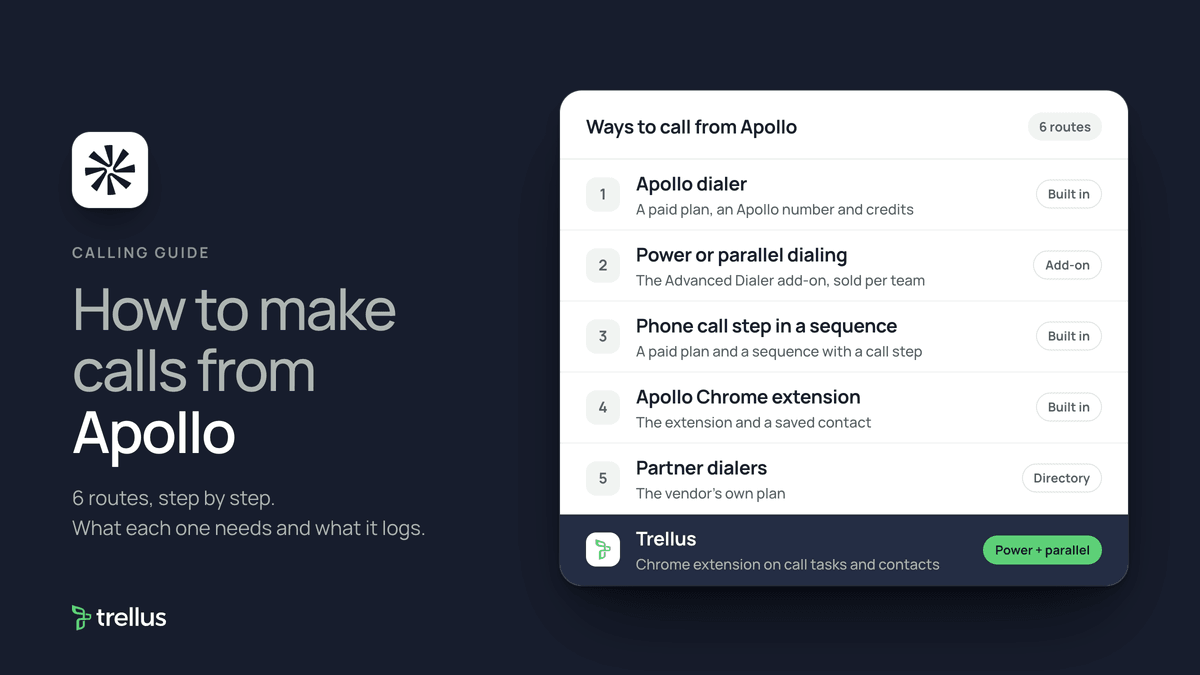
| Route | What you need | How the call starts | What lands in Apollo |
|---|---|---|---|
| Apollo dialer, one call at a time | A paid plan, an Apollo phone number and credits for connected calls | Click Call beside a saved contact, a call task or an upcoming call | The call with purpose, disposition and notes, plus recording and transcript when on |
| Power or parallel dialing | The Advanced Dialer add-on, sold per team | Select saved contacts or call tasks, click Call, then choose Parallel dialing or Power dialer | The same call log. Tasks can complete on a voicemail drop |
| Phone call step in a sequence | A paid plan and a sequence with a Phone call step | The step creates a call task under Tasks. A person places the call | The call, and the task once it is marked complete |
| Apollo Chrome extension | The extension and a saved contact | Click Dialer in the extension and start the call, or log a call made elsewhere | A call, or a logged call activity with outcome, purpose and note |
| Dialers in Apollo's integration directory | The vendor's own plan | In the vendor's app, from Apollo call tasks or sequences loaded there | As each listing states. Orum logs the call and completes the task |
| Trellus, a Chrome extension | Chrome and a Trellus plan | From call tasks, a contact or a task, in power or parallel mode | Disposition, purpose, note, recording link, task completion and a callback task |
What Apollo includes for calling
Apollo's Dialer Overview says all paid accounts have the dialer, and its Tasks Overview says free plans do not include the dialer or call tasks. On November 17, 2026, the Apollo pricing page listed US Dialer (credits apply) on three plans:
- Basic: $49 per seat per month billed annually, or $65 monthly, with 30,000 credits per seat per year.
- Professional: $79 billed annually, or $99 monthly, with 48,000 credits.
- Organization: $119 billed annually only, minimum 3 seats, with 72,000 credits.
For every plan, the credit rules and the add-on in one place, see Apollo pricing.
US calls cost 1 credit per 30 seconds, and a revealed phone number costs 8 credits. The Dialer Overview says only calls that reach a person, a voicemail or an answering machine use credits, with a 30-second minimum. Calls that ring out, are busy or fail use none. Credits are pooled across the team and do not roll over.
The Apollo Dialer page sells an Advanced Dialer add-on per team, for $149 per month or $119 per month billed annually. It adds power, parallel and international dialing and local presence. The pricing page calls this introductory pricing that may change. For a few calls a day, the dialer on your plan may be all you need.
Get a phone number and set up the dialer
Apollo's phone number article says each user gets one free number at a time, and international numbers need the add-on. The settings steps are from Apollo's dialer setup article.
- Click Settings, then Personal, then Phone numbers. Click Get my number, enter a US or Canadian area code, click Search and select a number.
- Click Add business profile and submit your business details. Apollo says an approved profile is needed for a caller ID name.
- For outgoing and incoming calls, choose Bridge or VoIP. Bridge rings your own mobile first and works only with US numbers. VoIP uses your browser and has no voicemail.
- To record, check Record All Voice Calls. Click Save Changes.
Call one contact from Apollo
These steps are from Apollo's article Make and Receive Calls on Apollo.
- Click People, then Saved. Or click Tasks, then Call tasks, or Calls, then Upcoming calls.
- Click Call beside the contact. Pick a number, or click Call default for the primary number.
- On bridge, answer the call from your Apollo number and follow the prompt. On VoIP, it connects in your browser. To type a number instead, open Calls, then New call.
- When the call ends, select a call purpose and a call disposition, add notes and click Save.
For someone not yet saved, click People, then Net New, and click Access mobile or Request phone number. Apollo says this uses credits. Numbers synced from a CRM or already saved need none.
Power or parallel dial with the Advanced Dialer
Apollo's article Use Parallel or Power Dialing says both need the Advanced Dialer add-on and work only with saved contacts.
- In People, then Saved, or Tasks, then Call tasks, check each contact to dial and click Call.
- Select Parallel dialing and choose how many calls to place at once. Apollo recommends three and allows up to five. Or select Power dialer to call one at a time.
- Choose the numbers to call from, the phone types to try in order and a voicemail drop.
- Choose whether call tasks complete on a voicemail drop or a call that does not connect, check Record connected calls if wanted, and click Call now.
- When someone answers, Apollo stops the other lines and opens the call. Select a purpose and disposition, add notes and click Log call. Apollo resumes the queue until you click Pause session or Stop session.
Call tasks from sequences and the Tasks page
Apollo's sequence article says a Phone call step creates a task, and a contact does not advance until the task is completed or skipped. To add the step, from Apollo's Create a Task article:
- Click Sequences and open or create a sequence.
- Click Add step and choose Phone call. Set when it starts, assign a priority and click Continue.
To make tasks in bulk, select saved contacts in People, click More actions, then Create tasks. To work them, click Tasks and choose the call view. Apollo's task article says to open a task, place the call, log the outcome and click Mark as Complete.
Call or log a call from the Apollo Chrome extension
Apollo's Chrome extension article says you can click the Dialer in the extension, select both numbers and click Start call. For a call made on another phone, open a saved contact, click Log activity, choose Call, select an outcome and purpose, add a note and click Save.
Dialers listed in Apollo's integration directory
The Apollo integration directory tags five partner apps as Dialer: Orum, Nooks, JustCall, Koncert and Allô. Each listing is written by the partner, and each is a separate subscription.
- Orum: load due sequence or one-off call tasks into Orum and power, parallel or click-to-call dial. Each call logs in Apollo with a recording link, and the task completes whatever the outcome.
- Nooks: load sequence call tasks into Nooks to power or parallel dial, up to 5 numbers at a time.
- JustCall: turn Apollo tasks into Sales Dialer campaigns. Recordings and dispositions sync to Apollo contacts.
- Allô: every call placed, received or missed logs as a call activity in Apollo, with a summary and transcript.
For more options, see our parallel dialers for Apollo.
Power or parallel dial Apollo call tasks with Trellus
Trellus is our product. It is a Chrome extension, not an Apollo directory app, and it works on Apollo call-task queues, Contact and Task pages and the Contact side panel. The steps below are from the Trellus for Apollo page.
- Add Trellus to Chrome from the Chrome Web Store.
- Open the Apollo context. Start from Tasks, then Call tasks, or from a Contact or Task. Trellus keeps the owner, filters and order.
- Review the number. Use the Apollo phone label and the verified, invalid or wrong-number status when Apollo provides it.
- Choose a dialing mode. The Trellus power dialer calls one number at a time. On an eligible plan, the Trellus parallel dialer calls up to five numbers at once.
- Return the result. Select a current Apollo disposition, resolve the purpose where configured, save the note or summary, and create a callback when needed.
Live coaching is on Business plans. Power is $99.99 per seat per month and Power + Parallel is $149.99. Both are bought online with no seat minimum, and there is no free plan or free trial (see Trellus pricing). Watch the recorded Apollo dialing walkthrough, or read parallel dialer vs. power dialer to choose a mode.
How calls end up on the record
- Apollo dialer: the call under Calls, with its purpose, disposition and notes. With recording on, Apollo adds the recording, a transcript and an AI summary.
- Power and parallel dialing: the same. A voicemail drop logs Left voicemail. A call that does not connect, with no drop, logs as not connected and leaves the task open.
- Trellus: the disposition, the purpose when resolved, the note or summary, an available recording link and source Task completion. A callback becomes an Apollo Task with the owner and due date.
- Your CRM: Apollo's Salesforce and HubSpot settings each have a Push calls option.
Recording and consent
Apollo says some US states and countries require every party to consent to a recording. By default it turns recording off for calls to 16 US states, Canada, the UK, Ireland, the EU, Switzerland and Australia. Admins can change these rules under Settings, then Team dialer, then Recording. Apollo says they are not legal guidance. With DNC screening on, Apollo blocks numbers on supported do not call lists unless you override one call with consent. The cold calling laws by state hub lists recording consent, calling hours and do-not-call rules for each state, with the statute. This guide is not legal advice.
Troubleshooting
- The dialer was turned off while credits remained. Apollo says it can pause a team's dialer when call charges pass 70% of the monthly subscription price and calls average over $0.15 a minute, among other conditions.
- A call did not record. Apollo says to check the recording rules for the prospect's area code.
- A number will not dial. Apollo says its telephony provider, Twilio, can block some numbers.
- Stuck connecting or dropped calls. Apollo's troubleshooting article suggests a network test, disconnecting a VPN and clearing the browser cache.
If calls connect but fewer people pick up, read why calls show Spam Likely.
Frequently asked questions
Does Apollo have a built-in dialer?
Yes. Apollo's dialer is included on paid plans and calls from your browser or your own mobile. Free plans do not include it. Power dialing, parallel dialing, international calls and local presence need the Advanced Dialer add-on.
How much does calling cost in Apollo?
On November 17, 2026, Apollo's pricing page charged 1 credit per 30 seconds for connected US calls on Basic, Professional and Organization plans. The Advanced Dialer add-on was $119 per team per month billed annually, or $149 monthly.
Can I parallel dial in Apollo?
Yes, with the Advanced Dialer add-on. Select saved contacts or call tasks, click Call and choose Parallel dialing. Apollo dials up to five numbers at once.
How do I add a call step to an Apollo sequence?
Open the sequence, click Add step and choose Phone call. Set the timing and priority, then click Continue. Each contact who reaches the step gets a call task under Tasks.
Can I use my own phone with Apollo?
Yes. Set outgoing calls to Bridge under Settings, then Phone numbers. Apollo rings your mobile first, then connects the contact from your Apollo number. Bridge works only with US numbers.
Sources
Every page below was read on November 17, 2026.
- Apollo knowledge base: Dialer Overview, phone numbers, dialer setup, making calls, parallel or power dialing and troubleshooting
- Apollo knowledge base: Tasks Overview, creating tasks, completing tasks, sequences, Chrome extension, DNC screening, Salesforce push and HubSpot sync
- Apollo pricing and the Apollo Dialer page
- Apollo integration directory: Orum, Nooks, JustCall and Allô
- Trellus: Trellus for Apollo and Trellus pricing